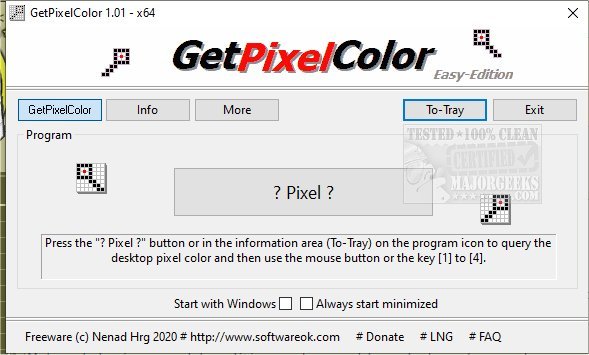
GetPixelColor 3.51 has been released, offering a user-friendly tool for identifying pixel color values, making it particularly useful for graphic designers, web administrators, and anyone interested in color analysis. This tool provides insights into the RGB color space in an engaging manner, and it even allows users to determine the pixel color from their desktop background at specific coordinates, such as X: 235 Y: 133.
Unlike standard Windows functions, GetPixelColor was developed as a dedicated solution for querying pixel color values, including RGB, RGBA, and HLS formats. Previously a subroutine within DesktopOK, it now stands alone as a versatile tool suitable for both novice and experienced users alike.
Using GetPixelColor is straightforward: simply click the '? Pixel ?' button, drag the box to the desired area on your screen, and click to retrieve the color information. Users can view the color palette, or with a few keystrokes (1-4), copy the color values directly to the clipboard for easy use.
Key features of GetPixelColor include:
- Capability to query RGB, RGBA, HLS, and other color values.
- Accessibility via the taskbar info area.
- Adjustable pixel selection through a color palette.
- An option to launch automatically with Windows.
This tool not only aids in color identification but also supports various users, from those just learning about color to seasoned graphic professionals needing precise color data. Furthermore, for individuals with color blindness, GetPixelColor can complement Windows 10/11 color filters, enhancing their experience and accessibility.
As technology and design continue to evolve, tools like GetPixelColor remain essential for ensuring accurate color representation in digital projects
Unlike standard Windows functions, GetPixelColor was developed as a dedicated solution for querying pixel color values, including RGB, RGBA, and HLS formats. Previously a subroutine within DesktopOK, it now stands alone as a versatile tool suitable for both novice and experienced users alike.
Using GetPixelColor is straightforward: simply click the '? Pixel ?' button, drag the box to the desired area on your screen, and click to retrieve the color information. Users can view the color palette, or with a few keystrokes (1-4), copy the color values directly to the clipboard for easy use.
Key features of GetPixelColor include:
- Capability to query RGB, RGBA, HLS, and other color values.
- Accessibility via the taskbar info area.
- Adjustable pixel selection through a color palette.
- An option to launch automatically with Windows.
This tool not only aids in color identification but also supports various users, from those just learning about color to seasoned graphic professionals needing precise color data. Furthermore, for individuals with color blindness, GetPixelColor can complement Windows 10/11 color filters, enhancing their experience and accessibility.
As technology and design continue to evolve, tools like GetPixelColor remain essential for ensuring accurate color representation in digital projects
GetPixelColor 3.51 released
GetPixelColor is a handy tool for determining pixel color values.