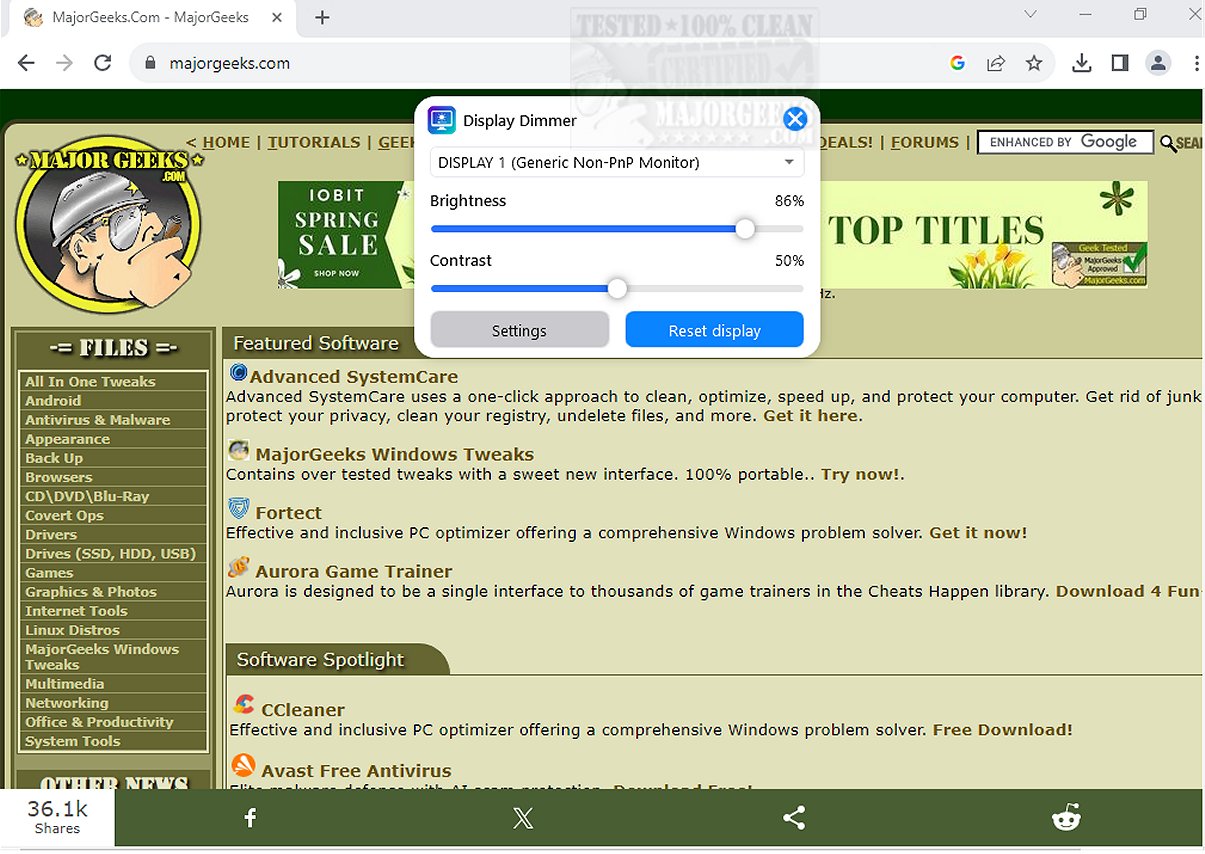
Display Dimmer is a versatile application that allows users to conveniently control the brightness of all connected external monitors from a single interface on their Windows system. This tool is designed to enhance user comfort by enabling straightforward adjustments to brightness settings, eliminating the need for cumbersome adjustments behind the monitor or through complex on-screen menus.
Key Features of Display Dimmer:
- Per-Monitor Control: Users can manage brightness and contrast for multiple external displays, making it ideal for setups involving dual or triple screens.
- Custom Profiles: The software allows for time-of-day scheduled brightness adjustments and per-application brightness profiles, catering to different lighting conditions and tasks.
- User Preferences: It remembers the preferred brightness levels for each monitor, streamlining the user experience.
- Quick Access: A tray icon provides easy access to the application, and it can be configured to start with Windows, automatically applying saved settings.
- Theming Options: Users can switch between light and dark themes for added personalization.
- Lightweight and Efficient: Built as a native WPF app, it maintains responsiveness and low memory usage while utilizing the Display Data Channel Command Interface (DDC/CI) when supported by the monitor.
Fallback Options: For monitors lacking full hardware control or experiencing inconsistent behavior, Display Dimmer employs safe GPU dimming techniques. This assures users can still achieve optimal brightness settings, enhancing their viewing experience and reducing eye strain during extended use.
Conclusion: Display Dimmer is a game-changer for anyone seeking to optimize their display settings effortlessly. With its intuitive interface and robust functionality, it eliminates the hassle of manual adjustments, enabling users to tailor their screen brightness to suit their environment and personal preferences seamlessly.
Similar Resources:
- Instructions on enabling or disabling adaptive brightness in Windows 10.
- Tips for turning off the monitor on demand.
- Guidance on locating and repairing stuck or dead pixels on LCD monitors.
Extension of the Concept:
Looking ahead, future updates could include features such as remote control capabilities via mobile applications, integration with smart home systems for automated adjustments based on time of day or ambient light, and advanced analytics to provide users insights into their screen usage patterns. Additionally, incorporating accessibility features for users with visual impairments would further enhance the application's utility, ensuring a comfortable viewing experience for all users
Key Features of Display Dimmer:
- Per-Monitor Control: Users can manage brightness and contrast for multiple external displays, making it ideal for setups involving dual or triple screens.
- Custom Profiles: The software allows for time-of-day scheduled brightness adjustments and per-application brightness profiles, catering to different lighting conditions and tasks.
- User Preferences: It remembers the preferred brightness levels for each monitor, streamlining the user experience.
- Quick Access: A tray icon provides easy access to the application, and it can be configured to start with Windows, automatically applying saved settings.
- Theming Options: Users can switch between light and dark themes for added personalization.
- Lightweight and Efficient: Built as a native WPF app, it maintains responsiveness and low memory usage while utilizing the Display Data Channel Command Interface (DDC/CI) when supported by the monitor.
Fallback Options: For monitors lacking full hardware control or experiencing inconsistent behavior, Display Dimmer employs safe GPU dimming techniques. This assures users can still achieve optimal brightness settings, enhancing their viewing experience and reducing eye strain during extended use.
Conclusion: Display Dimmer is a game-changer for anyone seeking to optimize their display settings effortlessly. With its intuitive interface and robust functionality, it eliminates the hassle of manual adjustments, enabling users to tailor their screen brightness to suit their environment and personal preferences seamlessly.
Similar Resources:
- Instructions on enabling or disabling adaptive brightness in Windows 10.
- Tips for turning off the monitor on demand.
- Guidance on locating and repairing stuck or dead pixels on LCD monitors.
Extension of the Concept:
Looking ahead, future updates could include features such as remote control capabilities via mobile applications, integration with smart home systems for automated adjustments based on time of day or ambient light, and advanced analytics to provide users insights into their screen usage patterns. Additionally, incorporating accessibility features for users with visual impairments would further enhance the application's utility, ensuring a comfortable viewing experience for all users
Display Dimmer 2.2.3 released
Display Dimmer enables you to effortlessly control the brightness of all your external monitors from a single location. This user-friendly tool lets you adjust the brightness settings for any connected display directly from your Windows interface.