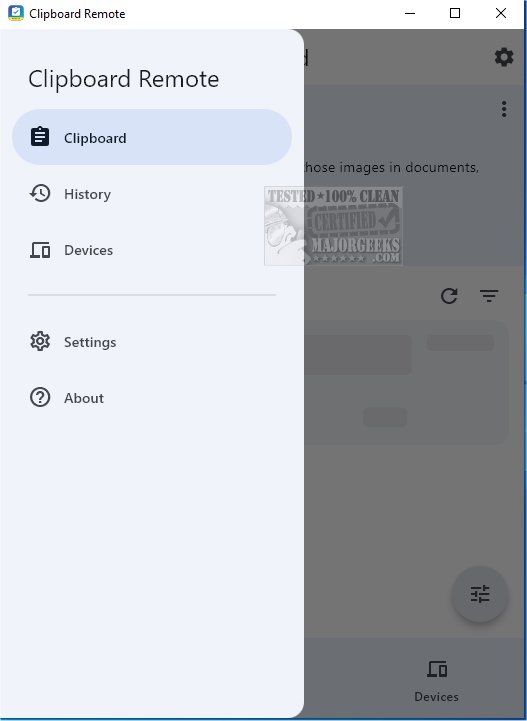
Clipboard Remote has simplified the process of sharing URLs and transferring photos between devices, making it a strong alternative to Quick Share. This application allows users to quickly send links from their phones to their computers or transfer images directly to the computer's clipboard for immediate use in documents, presentations, or social media posts.
How to Use Clipboard Remote
To utilize Clipboard Remote, users must install the application on at least two devices, which can include mobile phones or desktop computers. After installation, the app automatically detects nearby devices, presenting them in a user-friendly interface for easy access.
Device Pairing
Pairing devices is a simple process that typically requires just two clicks, making it user-friendly. Once devices are paired, Clipboard Remote's functionality becomes available.
Functionality Overview
When users copy text (using CTRL-C), the content is uploaded to Clipboard Remote, allowing it to be accessed instantly on the paired device. A key feature is its ability to preserve text formatting, ensuring a consistent appearance across devices.
Key Features of Clipboard Remote:
- Cross-Platform Compatibility: The app connects various devices and manages clipboard format differences across Windows, macOS, iOS, and Android.
- Easy Copy & Paste: Users can easily copy content from one device’s clipboard to another.
- Clickable URLs: URLs and email addresses in the clipboard can be clicked to open directly in the browser or email app.
- Edit & Crop Images: Users can edit, crop, or rotate images in their clipboard before sending or after receiving them.
- Clipboard History: Recent copy and paste operations are saved, allowing users to quickly access and share items.
- Secure Data Transfer: Clipboard Remote functions over LAN or Wi-Fi, ensuring data privacy and encryption within the local network.
Sharing Capabilities
It’s important to note that the sharing capabilities vary by device type. Text can be shared easily between a mobile device and a Windows PC, but images can only be sent from Android or iOS devices to desktop computers, not the other way around. This limitation is crucial for users who plan to use Clipboard Remote for media sharing.
Geek Verdict: Worth the Download
Clipboard Remote is an invaluable tool for efficiently sending text snippets, URLs, and photos between devices. By connecting three or more devices, users can utilize one as a bridge to transfer data seamlessly. Stay organized and connected with Clipboard Remote, the smart solution to enhance your digital workflow.
Future Enhancements and Considerations
Looking ahead, developers may consider expanding the app's image-sharing capabilities to allow for two-way sharing between mobile and desktop devices. Additionally, integrating cloud functionality could provide users with the option to access their clipboard across different networks while still maintaining data security. As the app continues to evolve, user feedback will be vital in shaping its future enhancements and features
How to Use Clipboard Remote
To utilize Clipboard Remote, users must install the application on at least two devices, which can include mobile phones or desktop computers. After installation, the app automatically detects nearby devices, presenting them in a user-friendly interface for easy access.
Device Pairing
Pairing devices is a simple process that typically requires just two clicks, making it user-friendly. Once devices are paired, Clipboard Remote's functionality becomes available.
Functionality Overview
When users copy text (using CTRL-C), the content is uploaded to Clipboard Remote, allowing it to be accessed instantly on the paired device. A key feature is its ability to preserve text formatting, ensuring a consistent appearance across devices.
Key Features of Clipboard Remote:
- Cross-Platform Compatibility: The app connects various devices and manages clipboard format differences across Windows, macOS, iOS, and Android.
- Easy Copy & Paste: Users can easily copy content from one device’s clipboard to another.
- Clickable URLs: URLs and email addresses in the clipboard can be clicked to open directly in the browser or email app.
- Edit & Crop Images: Users can edit, crop, or rotate images in their clipboard before sending or after receiving them.
- Clipboard History: Recent copy and paste operations are saved, allowing users to quickly access and share items.
- Secure Data Transfer: Clipboard Remote functions over LAN or Wi-Fi, ensuring data privacy and encryption within the local network.
Sharing Capabilities
It’s important to note that the sharing capabilities vary by device type. Text can be shared easily between a mobile device and a Windows PC, but images can only be sent from Android or iOS devices to desktop computers, not the other way around. This limitation is crucial for users who plan to use Clipboard Remote for media sharing.
Geek Verdict: Worth the Download
Clipboard Remote is an invaluable tool for efficiently sending text snippets, URLs, and photos between devices. By connecting three or more devices, users can utilize one as a bridge to transfer data seamlessly. Stay organized and connected with Clipboard Remote, the smart solution to enhance your digital workflow.
Future Enhancements and Considerations
Looking ahead, developers may consider expanding the app's image-sharing capabilities to allow for two-way sharing between mobile and desktop devices. Additionally, integrating cloud functionality could provide users with the option to access their clipboard across different networks while still maintaining data security. As the app continues to evolve, user feedback will be vital in shaping its future enhancements and features
Clipboard Remote 1.0.7 released
With Clipboard Remote, sharing URLs and transferring photos between your devices has never been easier. It is a solid alternative to Quick Share for facilitating immediate use of those images in documents, presentations, or social media posts.