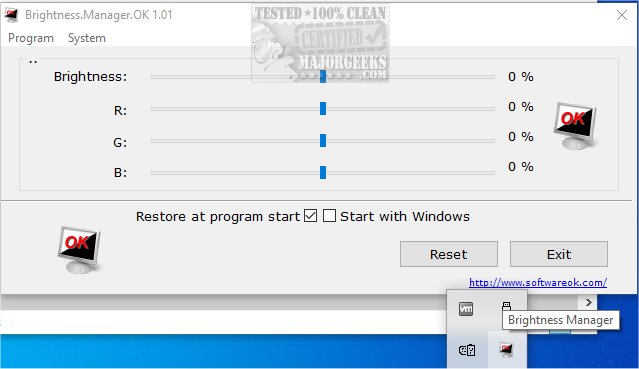
Brightness.Manager.OK has just released version 1.77, which serves as an alternative tool for managing screen brightness when the standard controls fail. This application allows users to set their preferred brightness levels, automatically applying these settings upon program launch or Windows login. For older monitors that display color tints (red, blue, green, or yellow), users can customize brightness in the RGB color space by adjusting individual RGB values, leading to a more personalized viewing experience.
The interface of Brightness.Manager.OK is user-friendly, featuring sliders for easy brightness adjustments. In addition, it integrates with various Windows functionalities, such as screensaver settings, power options, and the mobility center, enhancing user convenience. To exit the program, users can simply click the Exit button. If they opt to use ALT + F4 or the Close button, the application minimizes to the notification area of the Windows taskbar, allowing it to run in the background. However, it's important to remember that Windows will reset brightness settings upon reboot.
In extension, Brightness.Manager.OK could benefit from additional features, such as scheduling brightness adjustments based on the time of day, or providing presets for different activities (like reading or gaming) for even greater convenience. Furthermore, incorporating user feedback mechanisms could help developers improve future versions based on real-world usage scenarios. Enhanced compatibility with more monitor types and a mobile app version could also broaden its usability, making it a more versatile tool for all users.
Related resources include guides on enabling or disabling adaptive brightness in Windows 10 and 11, instructions for turning off monitors on demand, and tips for identifying and repairing stuck or dead pixels on LCD monitors
The interface of Brightness.Manager.OK is user-friendly, featuring sliders for easy brightness adjustments. In addition, it integrates with various Windows functionalities, such as screensaver settings, power options, and the mobility center, enhancing user convenience. To exit the program, users can simply click the Exit button. If they opt to use ALT + F4 or the Close button, the application minimizes to the notification area of the Windows taskbar, allowing it to run in the background. However, it's important to remember that Windows will reset brightness settings upon reboot.
In extension, Brightness.Manager.OK could benefit from additional features, such as scheduling brightness adjustments based on the time of day, or providing presets for different activities (like reading or gaming) for even greater convenience. Furthermore, incorporating user feedback mechanisms could help developers improve future versions based on real-world usage scenarios. Enhanced compatibility with more monitor types and a mobile app version could also broaden its usability, making it a more versatile tool for all users.
Related resources include guides on enabling or disabling adaptive brightness in Windows 10 and 11, instructions for turning off monitors on demand, and tips for identifying and repairing stuck or dead pixels on LCD monitors
Brightness.Manager.OK 1.77 released
Brightness.Manager.OK provides a stand-in option to control screen brightness when default controls cease to work.