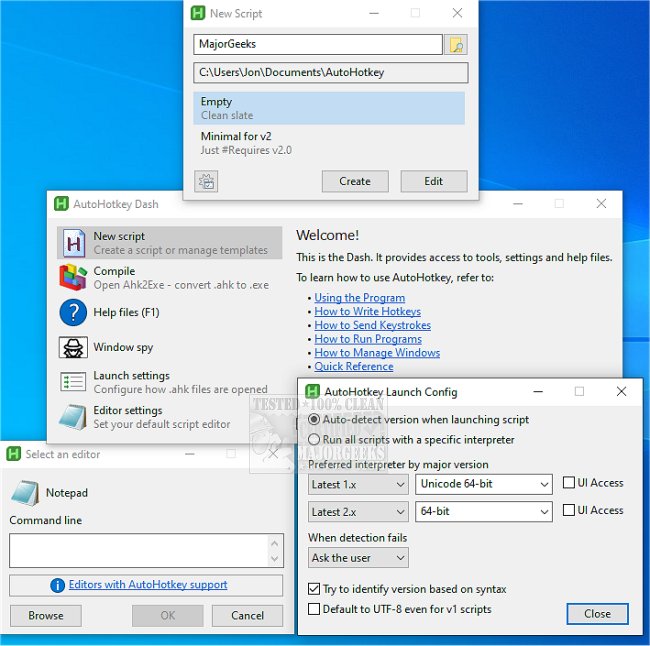
AutoHotkey has recently released versions 2.0.27 and 1.1.37.02 of its popular desktop automation tool, which allows users to create custom keyboard shortcuts, text replacements, and automation scripts to streamline repetitive tasks on Windows. This free scripting tool is particularly beneficial for users who frequently perform the same actions—like clicking through menus, replying to emails, or entering data.
The core functionality of AutoHotkey revolves around assigning actions to keys or mouse buttons, enabling users to automate processes such as launching applications or pasting frequently used text. Users can create simple scripts, for example, binding the Windows key combination to open a specific website, or more complex workflows involving multiple applications.
AutoHotkey is especially valuable for tasks that occur repeatedly, saving time and effort. For instance, it can automate the opening of certain websites every day or remap keys to enhance usability. A simple script can transform a key like Caps Lock into an Escape key, making it more functional.
Despite its power, AutoHotkey does require users to write scripts, which can pose a challenge for those unfamiliar with coding. Errors in scripts, such as missing brackets or incorrect key names, can lead to unexpected behavior, and the learning curve can be steep, especially when transitioning between versions 1 and 2.
To get started with AutoHotkey, users must install the software, create a new script file, input their commands, and run the script. The AutoHotkey icon will appear in the system tray, allowing for easy access to reload or exit scripts.
AutoHotkey excels in alleviating minor annoyances in daily computing tasks, particularly in older Windows applications and repetitive office work. However, users should be cautious with automation in online gaming, as many games have strict policies against the use of macros.
In summary, AutoHotkey is a powerful tool for automating mundane tasks and enhancing productivity for Windows users. While it requires some technical know-how, the efficiency gains from using even simple scripts can significantly improve the daily user experience. Ultimately, AutoHotkey is ideal for those willing to invest a bit of time to make their computing life smoother and more efficient.
Extension: With the ongoing development of AutoHotkey, users can expect future updates to refine the scripting language and enhance usability. New features may include improved error handling, an expanded library of pre-written scripts, and community-driven enhancements that simplify the scripting process. As automation continues to play a pivotal role in productivity, tools like AutoHotkey will likely evolve to meet the changing needs of users, making desktop automation accessible to an even broader audience. Additionally, as workplaces increasingly adopt hybrid models, the demand for efficient automation tools will likely grow, making a tool like AutoHotkey even more valuable for professionals looking to optimize their workflows
The core functionality of AutoHotkey revolves around assigning actions to keys or mouse buttons, enabling users to automate processes such as launching applications or pasting frequently used text. Users can create simple scripts, for example, binding the Windows key combination to open a specific website, or more complex workflows involving multiple applications.
AutoHotkey is especially valuable for tasks that occur repeatedly, saving time and effort. For instance, it can automate the opening of certain websites every day or remap keys to enhance usability. A simple script can transform a key like Caps Lock into an Escape key, making it more functional.
Despite its power, AutoHotkey does require users to write scripts, which can pose a challenge for those unfamiliar with coding. Errors in scripts, such as missing brackets or incorrect key names, can lead to unexpected behavior, and the learning curve can be steep, especially when transitioning between versions 1 and 2.
To get started with AutoHotkey, users must install the software, create a new script file, input their commands, and run the script. The AutoHotkey icon will appear in the system tray, allowing for easy access to reload or exit scripts.
AutoHotkey excels in alleviating minor annoyances in daily computing tasks, particularly in older Windows applications and repetitive office work. However, users should be cautious with automation in online gaming, as many games have strict policies against the use of macros.
In summary, AutoHotkey is a powerful tool for automating mundane tasks and enhancing productivity for Windows users. While it requires some technical know-how, the efficiency gains from using even simple scripts can significantly improve the daily user experience. Ultimately, AutoHotkey is ideal for those willing to invest a bit of time to make their computing life smoother and more efficient.
Extension: With the ongoing development of AutoHotkey, users can expect future updates to refine the scripting language and enhance usability. New features may include improved error handling, an expanded library of pre-written scripts, and community-driven enhancements that simplify the scripting process. As automation continues to play a pivotal role in productivity, tools like AutoHotkey will likely evolve to meet the changing needs of users, making desktop automation accessible to an even broader audience. Additionally, as workplaces increasingly adopt hybrid models, the demand for efficient automation tools will likely grow, making a tool like AutoHotkey even more valuable for professionals looking to optimize their workflows
AutoHotkey 2.0.27 / 1.1.37.02 released
AutoHotkey provides you with a fast, scriptable freeware desktop automation tool with hotkeys.