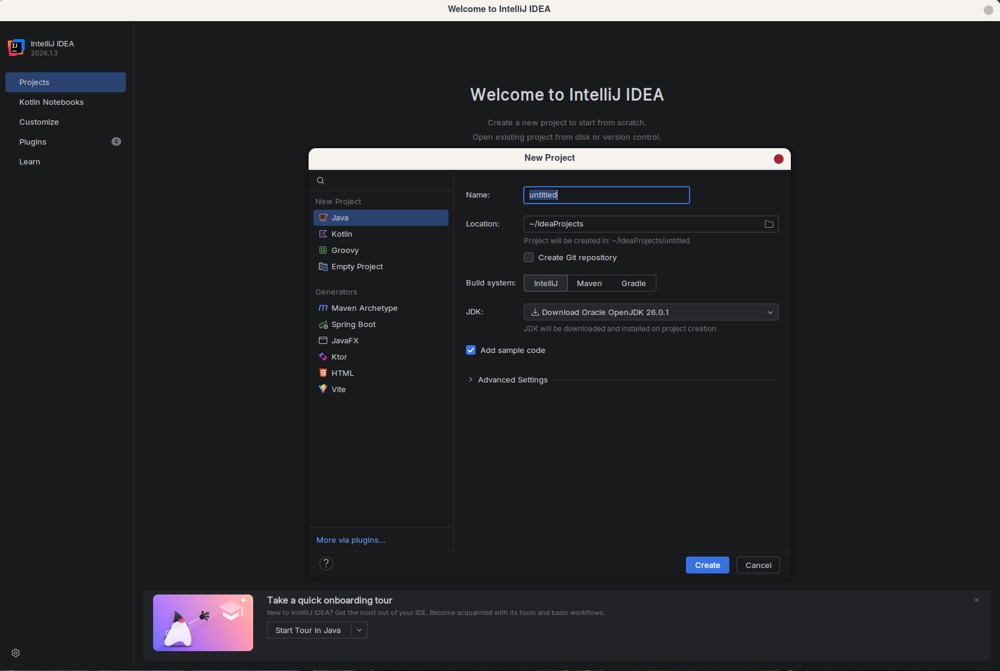
IntelliJ IDEA has solidified its position as the leading Integrated Development Environment (IDE) for Java and Kotlin development, recently launching a unified installer that integrates Junie coding agents and offers optional local AI routing through LM Studio or Ollama. This evolution emphasizes its commitment to enhancing developer productivity and streamlining workflow.
Overview of IntelliJ IDEA
IntelliJ IDEA is widely regarded as the go-to tool for developers focused on delivering code efficiently rather than grappling with cumbersome tools. This guide aims to provide a practical overview of the IDE, detailing its performance, version selection, and resource management. It also evaluates the necessity of the paid edition and how to optimize the IDE for better performance.
Choosing the Right Edition
JetBrains has simplified access to IntelliJ IDEA by eliminating separate downloads for Community and Ultimate editions; starting with version 2025.3, there's only one installer. The Community version remains free and effectively supports Java, Kotlin, Groovy, and Scala, offering features like smart autocomplete and built-in Git integration. However, users requiring advanced features such as Spring Boot wizards or comprehensive database tools will quickly encounter paywalls. For learners or those maintaining older codebases, the free version suffices, as sophisticated refactoring tools are not critical for basic tasks.
Optimizing Performance
According to official specifications, IntelliJ IDEA requires a minimum of 2 GB of RAM and 3.5 GB of disk space, though practical usage suggests that at least 8 GB of RAM and an SSD are recommended for optimal performance. Users should manage memory settings to prevent excessive RAM consumption, especially when working on large projects. It is advised to monitor memory usage with tools like Process Explorer instead of relying solely on Windows Task Manager.
The plugin ecosystem boasts over 7,600 extensions but can become a source of performance degradation if not managed carefully. It's advisable to disable unused plugins to maintain a responsive IDE, as installing too many can lead to significant resource strain.
Pricing and Access
The Ultimate edition costs approximately $199 annually for individuals, which is justified only for those needing extensive integration of frameworks like Spring or React. Students, educators, and open source contributors can obtain free licenses through JetBrains' verification program, which is a valuable resource that should be utilized before making purchases.
New AI Integration
The recent AI integration, featuring Junie and support for models like GPT and Claude, enhances the IDE's capabilities. It allows developers to route requests through local AI engines, ensuring data privacy and improved performance.
Pros and Cons of IntelliJ IDEA
Pros:
- The free version adequately handles Java and Kotlin without forcing subscriptions.
- Reliable refactoring tools that catch references missed by other IDEs.
- A unified installer simplifies the installation process.
Cons:
- High RAM usage can hinder performance on lower-spec machines.
- The Ultimate edition’s pricing may seem arbitrary, given that essential features are locked behind it.
- Plugin bloat can quickly degrade performance, making it essential to selectively install extensions.
Final Verdict
IntelliJ IDEA remains the top choice for professional JVM development, excelling in code comprehension. While users needing enterprise frameworks will require the Ultimate edition, it’s advisable to stick with the free version if minimalism is a priority. Developers should download the unified installer, set appropriate memory limits, and be judicious with plugin installations to ensure a seamless development experience. The latest enhancements, particularly in AI integration, further solidify IntelliJ IDEA's reputation as a powerful tool for modern software development.
In conclusion, IntelliJ IDEA’s continuous updates and feature enhancements, combined with its robust community support, make it an ideal choice for developers looking to maximize their productivity in Java and Kotlin development
Overview of IntelliJ IDEA
IntelliJ IDEA is widely regarded as the go-to tool for developers focused on delivering code efficiently rather than grappling with cumbersome tools. This guide aims to provide a practical overview of the IDE, detailing its performance, version selection, and resource management. It also evaluates the necessity of the paid edition and how to optimize the IDE for better performance.
Choosing the Right Edition
JetBrains has simplified access to IntelliJ IDEA by eliminating separate downloads for Community and Ultimate editions; starting with version 2025.3, there's only one installer. The Community version remains free and effectively supports Java, Kotlin, Groovy, and Scala, offering features like smart autocomplete and built-in Git integration. However, users requiring advanced features such as Spring Boot wizards or comprehensive database tools will quickly encounter paywalls. For learners or those maintaining older codebases, the free version suffices, as sophisticated refactoring tools are not critical for basic tasks.
Optimizing Performance
According to official specifications, IntelliJ IDEA requires a minimum of 2 GB of RAM and 3.5 GB of disk space, though practical usage suggests that at least 8 GB of RAM and an SSD are recommended for optimal performance. Users should manage memory settings to prevent excessive RAM consumption, especially when working on large projects. It is advised to monitor memory usage with tools like Process Explorer instead of relying solely on Windows Task Manager.
The plugin ecosystem boasts over 7,600 extensions but can become a source of performance degradation if not managed carefully. It's advisable to disable unused plugins to maintain a responsive IDE, as installing too many can lead to significant resource strain.
Pricing and Access
The Ultimate edition costs approximately $199 annually for individuals, which is justified only for those needing extensive integration of frameworks like Spring or React. Students, educators, and open source contributors can obtain free licenses through JetBrains' verification program, which is a valuable resource that should be utilized before making purchases.
New AI Integration
The recent AI integration, featuring Junie and support for models like GPT and Claude, enhances the IDE's capabilities. It allows developers to route requests through local AI engines, ensuring data privacy and improved performance.
Pros and Cons of IntelliJ IDEA
Pros:
- The free version adequately handles Java and Kotlin without forcing subscriptions.
- Reliable refactoring tools that catch references missed by other IDEs.
- A unified installer simplifies the installation process.
Cons:
- High RAM usage can hinder performance on lower-spec machines.
- The Ultimate edition’s pricing may seem arbitrary, given that essential features are locked behind it.
- Plugin bloat can quickly degrade performance, making it essential to selectively install extensions.
Final Verdict
IntelliJ IDEA remains the top choice for professional JVM development, excelling in code comprehension. While users needing enterprise frameworks will require the Ultimate edition, it’s advisable to stick with the free version if minimalism is a priority. Developers should download the unified installer, set appropriate memory limits, and be judicious with plugin installations to ensure a seamless development experience. The latest enhancements, particularly in AI integration, further solidify IntelliJ IDEA's reputation as a powerful tool for modern software development.
In conclusion, IntelliJ IDEA’s continuous updates and feature enhancements, combined with its robust community support, make it an ideal choice for developers looking to maximize their productivity in Java and Kotlin development
IntelliJ IDEA 2026.2.2 released
IntelliJ IDEA is the undisputed standard for Java and Kotlin development, now shipping a unified installer with integrated Junie coding agents and optional local AI routing through LM Studio or Ollama.