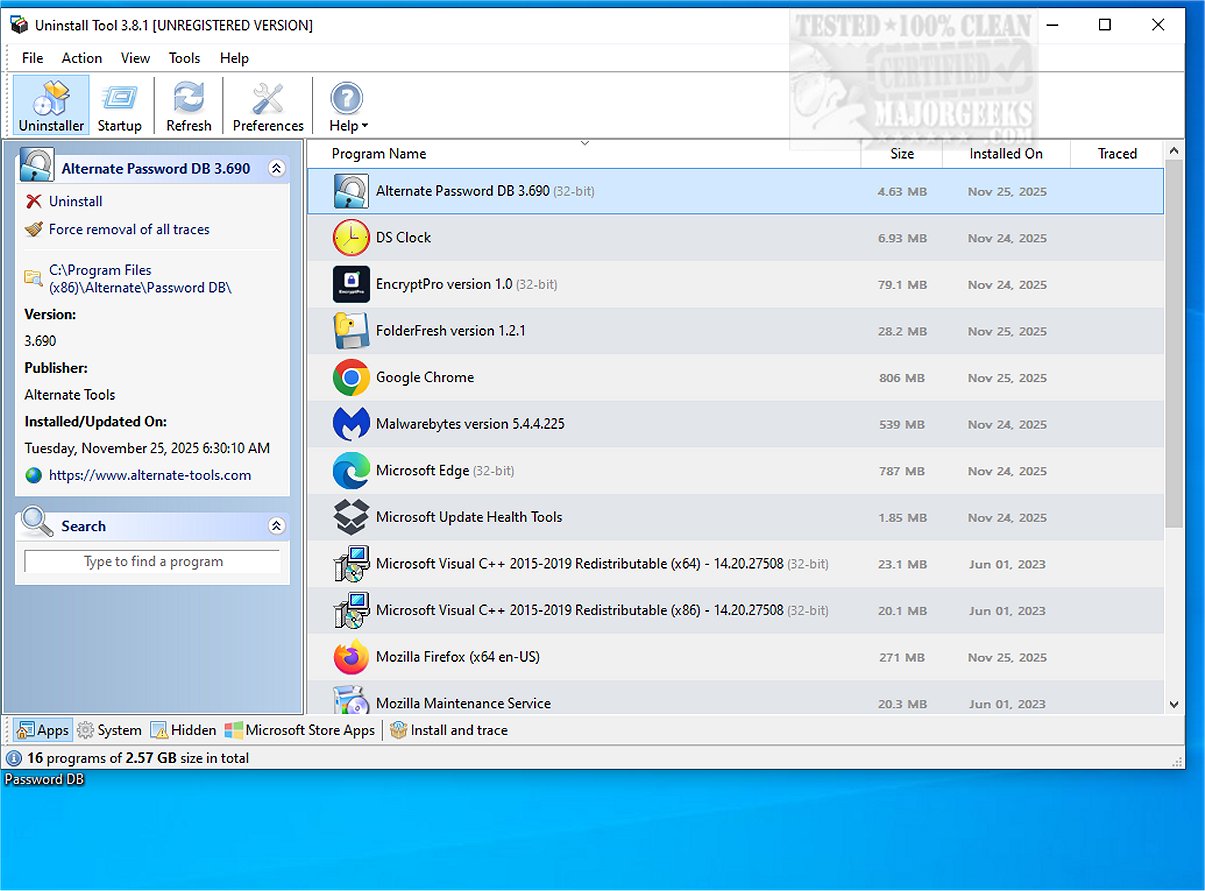
Uninstall Tool 3.8.2 has been released, offering users a robust alternative to the standard Windows Add/Remove Programs feature. This application enhances software management by providing a faster, more efficient way to handle installed applications, making it a favored choice for users seeking effective application management.
Features of Uninstall Tool:
One of the standout features of Uninstall Tool is its ability to generate a detailed list of all applications installed on a system, showcasing vital information such as the application name, size, and installation date. Users can refresh this list easily and even export it to HTML. The tool also includes a search function to quickly locate specific applications, options for sorting by system or hidden files, and access to the Windows Registry Editor for examining entry details. Additionally, it allows users to open the installation folder or conduct a Google search for the software.
Dual Operation Modes:
Uninstall Tool operates in two distinct modes for uninstalling software. The first mode allows users to uninstall a selected program, after which the tool scans for any leftover files and registry entries, ensuring complete removal. The second mode is designed to identify system files and registry items associated with specific applications, proving particularly useful for eliminating outdated or invalid entries not easily removed through traditional methods.
Monitoring Functionality:
The application also features monitoring capabilities with its Install and Trace mode, which tracks changes made to the system during software installation. This function enables users to view all leftover entries from monitored installations, fostering better system management.
Startup Manager Integration:
Moreover, Uninstall Tool includes a built-in Startup Manager, allowing users to examine programs that launch during startup. It provides insights into the current user registry key, detailing each utility's name, status, source, and company. Users can enable or disable startup entries and add new applications to the startup list as needed.
Conclusion:
Overall, Uninstall Tool represents a reliable solution that merges simplicity with advanced functionalities. It empowers users to remove programs and their residual files effortlessly, trace newly installed software meticulously, and manage startup items efficiently. Its intuitive interface and comprehensive features make it an ideal choice for anyone looking to maintain a clutter-free and optimized system.
Future Enhancements:
Looking ahead, future updates may include enhanced compatibility with newer operating systems, improved user interface design, and additional features such as automated cleanup suggestions and more robust monitoring capabilities. Users may also benefit from community feedback mechanisms to suggest improvements and report experiences, further solidifying Uninstall Tool's position as a leading software management tool
Features of Uninstall Tool:
One of the standout features of Uninstall Tool is its ability to generate a detailed list of all applications installed on a system, showcasing vital information such as the application name, size, and installation date. Users can refresh this list easily and even export it to HTML. The tool also includes a search function to quickly locate specific applications, options for sorting by system or hidden files, and access to the Windows Registry Editor for examining entry details. Additionally, it allows users to open the installation folder or conduct a Google search for the software.
Dual Operation Modes:
Uninstall Tool operates in two distinct modes for uninstalling software. The first mode allows users to uninstall a selected program, after which the tool scans for any leftover files and registry entries, ensuring complete removal. The second mode is designed to identify system files and registry items associated with specific applications, proving particularly useful for eliminating outdated or invalid entries not easily removed through traditional methods.
Monitoring Functionality:
The application also features monitoring capabilities with its Install and Trace mode, which tracks changes made to the system during software installation. This function enables users to view all leftover entries from monitored installations, fostering better system management.
Startup Manager Integration:
Moreover, Uninstall Tool includes a built-in Startup Manager, allowing users to examine programs that launch during startup. It provides insights into the current user registry key, detailing each utility's name, status, source, and company. Users can enable or disable startup entries and add new applications to the startup list as needed.
Conclusion:
Overall, Uninstall Tool represents a reliable solution that merges simplicity with advanced functionalities. It empowers users to remove programs and their residual files effortlessly, trace newly installed software meticulously, and manage startup items efficiently. Its intuitive interface and comprehensive features make it an ideal choice for anyone looking to maintain a clutter-free and optimized system.
Future Enhancements:
Looking ahead, future updates may include enhanced compatibility with newer operating systems, improved user interface design, and additional features such as automated cleanup suggestions and more robust monitoring capabilities. Users may also benefit from community feedback mechanisms to suggest improvements and report experiences, further solidifying Uninstall Tool's position as a leading software management tool
Uninstall Tool 3.8.2 released
Uninstall Tool is a powerful application designed as an alternative to the traditional Windows Add/Remove Programs feature. Enhancing the speed and overall functionality of software management enables you to manage installed applications more efficiently, making it a popular choice for effective application management.