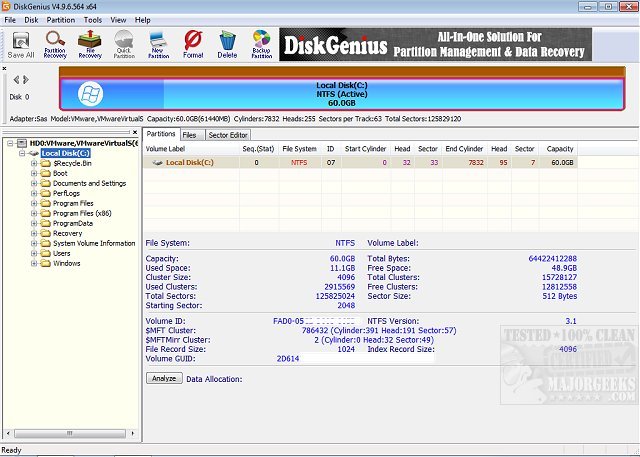
DiskGenius 6.2.0.1829 has recently been released, enhancing its capabilities as an all-in-one utility for Windows users to manage partitions and perform data recovery and backup operations. This comprehensive tool assists in recovering deleted files, repairing lost partitions, resizing drives, checking for bad sectors, and backing up critical data to prevent data loss.
DiskGenius serves multiple purposes: it enables users to create, delete, format, resize, and split partitions, as well as recover lost files and check for disk errors. It also provides detailed information about partitions, such as file system types and capacities, which is often lacking in Windows' built-in Disk Management tool. Users often turn to DiskGenius when they encounter issues with drives or partitions that cannot be resolved using standard Windows tools. For example, if an external hard drive shows a partition as RAW instead of NTFS, DiskGenius can scan the drive and help recover files without altering the partition structure.
While DiskGenius is a powerful tool, it is essential to exercise caution when using it. Users should always back up important data before making any changes, as improper use can lead to data loss. The interface, while packed with features, may be overwhelming for beginners, who should take their time to understand the options available before proceeding.
Beyond basic partition management, DiskGenius includes advanced features such as:
- Recovery of lost files and partitions.
- Tools for resizing, splitting, formatting, creating, and deleting partitions.
- Disk and partition cloning capabilities.
- Tools for checking and repairing bad sectors.
- Verification of partition tables and disk error checking.
- Support for creating virtual RAID setups.
- USB disk formatting utilities and hex editing for advanced users.
- Compatibility with NTFS partitions with large clusters and EXT4 file systems, making it useful for users who work with Linux drives within a Windows environment.
To use DiskGenius, users should begin by selecting the relevant drive or partition from the interface, which provides essential details about the selected partition. For recovery, it's crucial to perform a scan before making any changes or formatting the drive. Files identified during recovery should be saved to a different drive to prevent overwriting.
Though the free version of DiskGenius suffices for basic tasks, some advanced features—such as support for virtual disks and multiple disk management—require a paid license. Additionally, users should be aware that if a drive is physically failing, recovery attempts should focus on salvaging important files before further use.
DiskGenius is a versatile and effective tool for both novice and experienced users needing a comprehensive disk utility. While it provides greater control over disk management and recovery than Windows' native tools, users should approach it with caution and thorough awareness of their options. The free version is particularly suitable for everyday tasks like file recovery and partition management, making DiskGenius a valuable addition to any Windows user's toolkit.
- How to Check Your Hard Disk Health Using WMIC
- How to Check SMART Predict Failure in Windows
- Quick Format and Full Format Explained
- How to Erase a Disk Using Diskpart Clean Command in Windows
In summary, DiskGenius stands out as a robust solution for data management, but users must be diligent in their approach to ensure they do not inadvertently compromise their data
Key Features of DiskGenius
DiskGenius serves multiple purposes: it enables users to create, delete, format, resize, and split partitions, as well as recover lost files and check for disk errors. It also provides detailed information about partitions, such as file system types and capacities, which is often lacking in Windows' built-in Disk Management tool. Users often turn to DiskGenius when they encounter issues with drives or partitions that cannot be resolved using standard Windows tools. For example, if an external hard drive shows a partition as RAW instead of NTFS, DiskGenius can scan the drive and help recover files without altering the partition structure.
User Caution
While DiskGenius is a powerful tool, it is essential to exercise caution when using it. Users should always back up important data before making any changes, as improper use can lead to data loss. The interface, while packed with features, may be overwhelming for beginners, who should take their time to understand the options available before proceeding.
Additional Features
Beyond basic partition management, DiskGenius includes advanced features such as:
- Recovery of lost files and partitions.
- Tools for resizing, splitting, formatting, creating, and deleting partitions.
- Disk and partition cloning capabilities.
- Tools for checking and repairing bad sectors.
- Verification of partition tables and disk error checking.
- Support for creating virtual RAID setups.
- USB disk formatting utilities and hex editing for advanced users.
- Compatibility with NTFS partitions with large clusters and EXT4 file systems, making it useful for users who work with Linux drives within a Windows environment.
How to Use DiskGenius
To use DiskGenius, users should begin by selecting the relevant drive or partition from the interface, which provides essential details about the selected partition. For recovery, it's crucial to perform a scan before making any changes or formatting the drive. Files identified during recovery should be saved to a different drive to prevent overwriting.
Limitations
Though the free version of DiskGenius suffices for basic tasks, some advanced features—such as support for virtual disks and multiple disk management—require a paid license. Additionally, users should be aware that if a drive is physically failing, recovery attempts should focus on salvaging important files before further use.
Conclusion
DiskGenius is a versatile and effective tool for both novice and experienced users needing a comprehensive disk utility. While it provides greater control over disk management and recovery than Windows' native tools, users should approach it with caution and thorough awareness of their options. The free version is particularly suitable for everyday tasks like file recovery and partition management, making DiskGenius a valuable addition to any Windows user's toolkit.
Related Topics
- How to Check Your Hard Disk Health Using WMIC
- How to Check SMART Predict Failure in Windows
- Quick Format and Full Format Explained
- How to Erase a Disk Using Diskpart Clean Command in Windows
In summary, DiskGenius stands out as a robust solution for data management, but users must be diligent in their approach to ensure they do not inadvertently compromise their data
DiskGenius 6.2.0.1829 released
Disk Genius is an all-in-one tool for managing partitions along with data recovery and backup and restore functions.