VMware Tools 13.1.0 has been released, providing essential enhancements for users of VMware Workstation, a powerful desktop virtualization software that allows multiple operating systems to run simultaneously on a single PC. Although VMware Workstation is now free, the importance of installing VMware Tools cannot be overstated, as it significantly boosts the performance and usability of virtual machines (VMs).
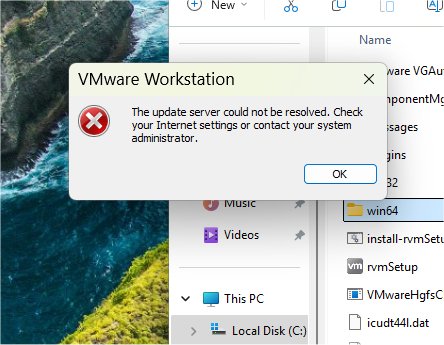
VMware Tools acts as a driver pack and integration layer, allowing your guest operating system to operate seamlessly within your host system. Without it, VMs may run, but they lack responsiveness and functionality. Despite being developed by VMware, VMware Tools does not come pre-installed with the software; users have reported difficulties in accessing it directly through VMware Workstation. However, users can manually download and install it, ensuring their virtual machines operate optimally.
The benefits of VMware Tools include:
- Mouse and Display Integration: Enables a smooth transition of the mouse between the host and guest OS, along with support for dynamic screen resizing and multiple monitors.
- Copy, Paste, and Drag-and-Drop: Simplifies file and text transfer between the host and VM, making it more efficient for tasks like testing and development.
- Improved Performance: Optimized drivers enhance video acceleration, disk handling, and overall graphics.
- Time Sync: Ensures that the VM's clock stays in sync with the host system, preventing time drift.
- Shared Folders: Facilitates easy file access between host and guest without the need for cloud services or FTP.
- Faster Shutdown and Reboots: Allows for clean shutdowns and reboots directly from the host interface.
- Enhanced Guest Metrics: Provides detailed performance data for better monitoring and resource management in enterprise environments.
- Full Screen Mode Support: Enables dynamic adjustments to display resolution when switching to full-screen mode.
To install VMware Tools, users need to download the appropriate version for their system, copy it onto a USB drive, mount the USB in the VM, and then run the installation.
Once installed, VMware Tools operates in the background without a dedicated user interface. Basic features like clipboard sync and drag-and-drop are typically enabled by default. If issues arise, users may need to check the VM settings to ensure shared features are allowed.
In conclusion, VMware Tools is a crucial add-on for anyone using VMware Workstation. It transforms a virtual machine from a rudimentary application into a fully integrated part of the user’s computing environment, providing enhanced control and smoother operation. By installing VMware Tools, users can significantly elevate their virtualization experience and eliminate the inefficiencies of running VMs without it. For those who have yet to install it, doing so is a no-brainer for a more efficient and enjoyable virtual machine experience
VMware Tools acts as a driver pack and integration layer, allowing your guest operating system to operate seamlessly within your host system. Without it, VMs may run, but they lack responsiveness and functionality. Despite being developed by VMware, VMware Tools does not come pre-installed with the software; users have reported difficulties in accessing it directly through VMware Workstation. However, users can manually download and install it, ensuring their virtual machines operate optimally.
The benefits of VMware Tools include:
- Mouse and Display Integration: Enables a smooth transition of the mouse between the host and guest OS, along with support for dynamic screen resizing and multiple monitors.
- Copy, Paste, and Drag-and-Drop: Simplifies file and text transfer between the host and VM, making it more efficient for tasks like testing and development.
- Improved Performance: Optimized drivers enhance video acceleration, disk handling, and overall graphics.
- Time Sync: Ensures that the VM's clock stays in sync with the host system, preventing time drift.
- Shared Folders: Facilitates easy file access between host and guest without the need for cloud services or FTP.
- Faster Shutdown and Reboots: Allows for clean shutdowns and reboots directly from the host interface.
- Enhanced Guest Metrics: Provides detailed performance data for better monitoring and resource management in enterprise environments.
- Full Screen Mode Support: Enables dynamic adjustments to display resolution when switching to full-screen mode.
To install VMware Tools, users need to download the appropriate version for their system, copy it onto a USB drive, mount the USB in the VM, and then run the installation.
Once installed, VMware Tools operates in the background without a dedicated user interface. Basic features like clipboard sync and drag-and-drop are typically enabled by default. If issues arise, users may need to check the VM settings to ensure shared features are allowed.
In conclusion, VMware Tools is a crucial add-on for anyone using VMware Workstation. It transforms a virtual machine from a rudimentary application into a fully integrated part of the user’s computing environment, providing enhanced control and smoother operation. By installing VMware Tools, users can significantly elevate their virtualization experience and eliminate the inefficiencies of running VMs without it. For those who have yet to install it, doing so is a no-brainer for a more efficient and enjoyable virtual machine experience
VMware Tools 13.1.0 released
If you run VMware Workstation, VMware Tools is the performance boost your virtual machines need on day one.