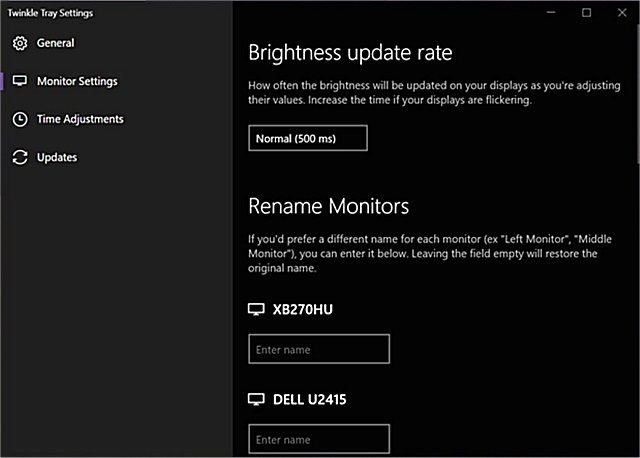
Twinkle Tray has recently released its Beta 2 version 1.18.0 alongside version 1.17.2, enhancing its utility for managing monitor brightness. This application is designed to efficiently control the brightness levels of multiple monitors, addressing a common limitation in Windows 10, which typically does not support external monitor brightness adjustments. With Twinkle Tray, users gain access to a system tray icon that allows for quick adjustments to all compatible monitors' brightness levels.
The app utilizes DDC/CI and WMI protocols to communicate with monitors, requiring users to enable specific settings on their devices for optimal functionality. Key features of Twinkle Tray include:
- The ability to manage brightness for one or more monitors easily.
- The option to normalize backlight across different monitor models.
- Seamless integration with Windows 10's personalization settings, ensuring a consistent aesthetic with the taskbar.
- Automatic startup with Windows for convenience.
- Accessibility from the system tray for quick adjustments.
- The capability to automatically adjust brightness based on the time of day.
- Support for multiple languages, including Japanese, Spanish, Russian, French, Norwegian, German, and Italian.
In addition to its primary features, Twinkle Tray may serve as a complementary tool for users seeking to optimize their monitor experience further. It can be connected with existing Windows functionalities, such as enabling or disabling adaptive brightness and managing monitor settings. As users increasingly rely on multiple displays, tools like Twinkle Tray are becoming essential for enhancing productivity and ensuring visual comfort across different work environments.
For those looking to explore further, tips on managing monitor brightness through Windows settings and troubleshooting common display issues, such as stuck or dead pixels, are readily available
The app utilizes DDC/CI and WMI protocols to communicate with monitors, requiring users to enable specific settings on their devices for optimal functionality. Key features of Twinkle Tray include:
- The ability to manage brightness for one or more monitors easily.
- The option to normalize backlight across different monitor models.
- Seamless integration with Windows 10's personalization settings, ensuring a consistent aesthetic with the taskbar.
- Automatic startup with Windows for convenience.
- Accessibility from the system tray for quick adjustments.
- The capability to automatically adjust brightness based on the time of day.
- Support for multiple languages, including Japanese, Spanish, Russian, French, Norwegian, German, and Italian.
In addition to its primary features, Twinkle Tray may serve as a complementary tool for users seeking to optimize their monitor experience further. It can be connected with existing Windows functionalities, such as enabling or disabling adaptive brightness and managing monitor settings. As users increasingly rely on multiple displays, tools like Twinkle Tray are becoming essential for enhancing productivity and ensuring visual comfort across different work environments.
For those looking to explore further, tips on managing monitor brightness through Windows settings and troubleshooting common display issues, such as stuck or dead pixels, are readily available
Twinkle Tray: Brightness Slider 1.18.0 Beta 2 / 1.17.2 released
Twinkle Tray lets you efficiently manage the brightness levels of multiple monitors.
Twinkle Tray: Brightness Slider 1.18.0 Beta 2 / 1.17.2 released @ MajorGeeks