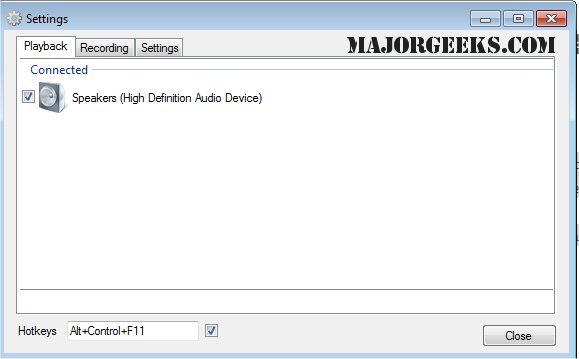
SoundSwitch is a utility designed to simplify the process of switching between multiple audio playback devices on Windows. With the latest release of version 7.2.0, the tool continues to facilitate quick audio device switching through customizable hotkeys, eliminating the hassle of navigating through menus.
Key Features:
- Hotkey Configuration: Upon installation, SoundSwitch places a small icon in the system tray. Users can access settings by right-clicking the icon, where they can assign a hotkey (default: Ctrl+Alt+F11) and select specific playback devices for rotation. This ensures that users only cycle through their chosen devices, avoiding any accidental switches to less desirable outputs like monitor speakers.
- Instant Device Switching: Once configured, SoundSwitch runs seamlessly in the background. Pressing the designated hotkey will immediately toggle to the next device on the custom list, accompanied by a brief notification indicating the active device.
Practical Applications:
- Headphones vs. Speakers: Users can effortlessly switch between headphones and speakers, streamlining audio management without needing to access the volume mixer.
- Streaming and Gaming: The tool is ideal for content creators who require quick access to their audio interfaces or capture cards during live streams or gaming sessions.
- Remote Work Adjustments: For those working from home, SoundSwitch allows for quick transitions between headset and speaker use depending on the activity—be it a meeting or casual listening.
- Bluetooth Convenience: It’s particularly beneficial for Bluetooth audio users, allowing them to resolve connectivity issues, like reverting to "hands-free mode," with a simple toggle.
Pros and Cons:
- Pros:
- Free and open-source (licensed under GPL 3.0)
- Saves time with hotkey-based switching
- Lightweight and unobtrusive
- Simple configuration process
- Cons:
- Lacks audio profiles or per-application routing
- Available only for Windows (no support for macOS or Linux)
- Focuses solely on playback and recording switches without comprehensive audio management options
Conclusion:
SoundSwitch serves as a practical solution for users managing multiple audio outputs, prompting the question of why such a feature isn't integrated into Windows by default. Its lightweight nature and ease of use make it an invaluable addition for those frequently switching audio devices, whether for gaming, streaming, or general use. If audio management is a regular part of your routine, SoundSwitch is a must-have tool that can significantly enhance your experience.
Related Resources:
- Instructions for enabling toggle key sounds in Windows 10 & 11
- Guide to activating Windows Sonic Surround Sound on Windows 10 & 11
- Tips for diagnosing sound delays and audio latency issues in Windows 10 & 11
- Methods for renaming sound input or output devices in Windows
Key Features:
- Hotkey Configuration: Upon installation, SoundSwitch places a small icon in the system tray. Users can access settings by right-clicking the icon, where they can assign a hotkey (default: Ctrl+Alt+F11) and select specific playback devices for rotation. This ensures that users only cycle through their chosen devices, avoiding any accidental switches to less desirable outputs like monitor speakers.
- Instant Device Switching: Once configured, SoundSwitch runs seamlessly in the background. Pressing the designated hotkey will immediately toggle to the next device on the custom list, accompanied by a brief notification indicating the active device.
Practical Applications:
- Headphones vs. Speakers: Users can effortlessly switch between headphones and speakers, streamlining audio management without needing to access the volume mixer.
- Streaming and Gaming: The tool is ideal for content creators who require quick access to their audio interfaces or capture cards during live streams or gaming sessions.
- Remote Work Adjustments: For those working from home, SoundSwitch allows for quick transitions between headset and speaker use depending on the activity—be it a meeting or casual listening.
- Bluetooth Convenience: It’s particularly beneficial for Bluetooth audio users, allowing them to resolve connectivity issues, like reverting to "hands-free mode," with a simple toggle.
Pros and Cons:
- Pros:
- Free and open-source (licensed under GPL 3.0)
- Saves time with hotkey-based switching
- Lightweight and unobtrusive
- Simple configuration process
- Cons:
- Lacks audio profiles or per-application routing
- Available only for Windows (no support for macOS or Linux)
- Focuses solely on playback and recording switches without comprehensive audio management options
Conclusion:
SoundSwitch serves as a practical solution for users managing multiple audio outputs, prompting the question of why such a feature isn't integrated into Windows by default. Its lightweight nature and ease of use make it an invaluable addition for those frequently switching audio devices, whether for gaming, streaming, or general use. If audio management is a regular part of your routine, SoundSwitch is a must-have tool that can significantly enhance your experience.
Related Resources:
- Instructions for enabling toggle key sounds in Windows 10 & 11
- Guide to activating Windows Sonic Surround Sound on Windows 10 & 11
- Tips for diagnosing sound delays and audio latency issues in Windows 10 & 11
- Methods for renaming sound input or output devices in Windows
SoundSwitch 7.2.0 released
SoundSwitch allows you to easily switch between the different playback devices currently connected to your machine via hotkeys.