The recently released version 1.1.1.260 of Send to Kindle for PC offers users a seamless and efficient way to transfer documents from their desktop or laptop directly to their Kindle devices. This application simplifies the process of accessing and reading various document types, significantly improving the overall reading experience for Kindle users.
User-Friendly Functionality
Send to Kindle for PC operates smoothly through a context menu, allowing users to right-click on any document and select the "Send to Kindle" option. The application is designed to automatically detect compatible document types, ensuring that users only see the option for files that can be sent to their Kindle. Additionally, it includes a "Send to Kindle" printer option, enabling users to print documents from any application directly to their Kindle, further enhancing the convenience of content sharing.
Drag-and-Drop Feature and Setup
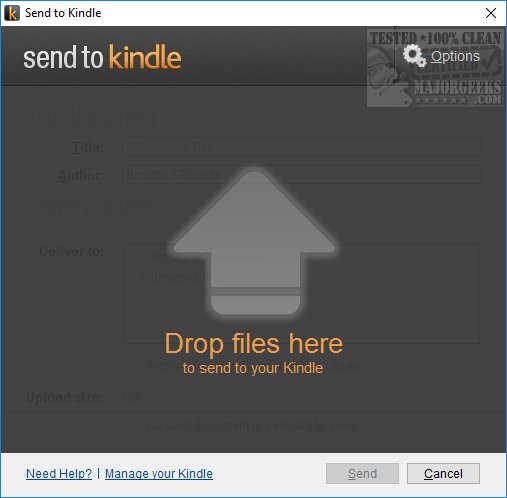
To utilize the drag-and-drop feature, users must first open the application and then simply drag their documents into the interface. During installation, the program does not automatically create shortcuts, necessitating users to manually create one by navigating to Program Files (x86) > Amazon > SendToKindle and linking to the SendToKindle.exe file for easier access. Accessing the main window is crucial for using the drag-and-drop functionality, managing the Kindle device, adjusting settings, and seeking help.
Enhanced Features for a Seamless Experience
The app is equipped with several user-friendly features, including settings for general preferences, registration, language selection, network configurations, feedback options, and an About section. Notably, it offers a valuable conversion tool that transforms PDF files into formats compatible with Kindle, catering to diverse reading preferences and further enhancing usability.
Getting Started with Send to Kindle
Upon installation, users are greeted with a getting started guide, which requires them to sign in with their Amazon account to begin using the app effectively.
Geek Verdict
Send to Kindle is an essential tool for anyone looking to easily transfer documents from their PC to their Kindle, promoting the convenience of reading anywhere. Its intuitive interface and efficient functionality make it a powerful solution for enhancing reading habits. As technology continues to evolve, tools like Send to Kindle are paving the way for improved literary experiences, making it easier than ever to embrace digital reading.
Future Prospects
As digital reading becomes increasingly popular, applications like Send to Kindle are likely to evolve further, potentially integrating with more file formats and cloud services to enhance accessibility. Future updates may also introduce additional features, such as advanced organizational tools for managing documents and improved compatibility with other devices, ensuring that users can enjoy a comprehensive and customizable reading experience across their digital libraries
User-Friendly Functionality
Send to Kindle for PC operates smoothly through a context menu, allowing users to right-click on any document and select the "Send to Kindle" option. The application is designed to automatically detect compatible document types, ensuring that users only see the option for files that can be sent to their Kindle. Additionally, it includes a "Send to Kindle" printer option, enabling users to print documents from any application directly to their Kindle, further enhancing the convenience of content sharing.
Drag-and-Drop Feature and Setup
To utilize the drag-and-drop feature, users must first open the application and then simply drag their documents into the interface. During installation, the program does not automatically create shortcuts, necessitating users to manually create one by navigating to Program Files (x86) > Amazon > SendToKindle and linking to the SendToKindle.exe file for easier access. Accessing the main window is crucial for using the drag-and-drop functionality, managing the Kindle device, adjusting settings, and seeking help.
Enhanced Features for a Seamless Experience
The app is equipped with several user-friendly features, including settings for general preferences, registration, language selection, network configurations, feedback options, and an About section. Notably, it offers a valuable conversion tool that transforms PDF files into formats compatible with Kindle, catering to diverse reading preferences and further enhancing usability.
Getting Started with Send to Kindle
Upon installation, users are greeted with a getting started guide, which requires them to sign in with their Amazon account to begin using the app effectively.
Geek Verdict
Send to Kindle is an essential tool for anyone looking to easily transfer documents from their PC to their Kindle, promoting the convenience of reading anywhere. Its intuitive interface and efficient functionality make it a powerful solution for enhancing reading habits. As technology continues to evolve, tools like Send to Kindle are paving the way for improved literary experiences, making it easier than ever to embrace digital reading.
Future Prospects
As digital reading becomes increasingly popular, applications like Send to Kindle are likely to evolve further, potentially integrating with more file formats and cloud services to enhance accessibility. Future updates may also introduce additional features, such as advanced organizational tools for managing documents and improved compatibility with other devices, ensuring that users can enjoy a comprehensive and customizable reading experience across their digital libraries
Send to Kindle for PC 1.1.1.260 released
Send to Kindle for PC is a useful application that enables you to effortlessly transfer documents from your laptop or desktop directly to your Kindle device.