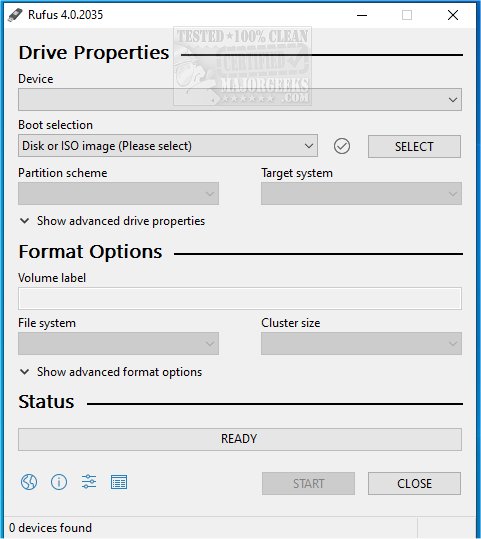
Rufus 4.16 has been released, enhancing its status as a premier open-source utility for quickly formatting and creating bootable USB flash drives. This lightweight tool is especially useful for tasks like operating system installations, diagnostics, and firmware flashing. The latest version integrates with Fido, allowing users to download Windows 10 and 8.1 ISOs directly from Microsoft servers. For those seeking guidance, a video tutorial is available.
Why Choose Rufus?
Rufus stands out for its speed, wide file format support, and compatibility with both BIOS and UEFI systems. Key features include:
- Effortless Bootable USB Creation: Ideal for installing Windows, Linux, and other operating systems.
- Portability: Rufus requires no installation and runs instantly.
- Speed and Efficiency: It is faster than many competitors in the market.
- Compatibility: Supports both UEFI and Legacy BIOS systems.
- Open Source: Completely free to use with no ads or unnecessary bloat.
Ideal Use Cases for Rufus
Rufus is beneficial in various scenarios:
- Creating bootable installation drives for Windows or Linux.
- Generating rescue disks for system recovery.
- Flashing firmware and updating BIOS.
- Running live operating systems without hard drive installation.
- Assisting IT professionals with troubleshooting and system maintenance.
However, it is worth noting that Rufus is optimized for a single OS per USB drive. Users looking for multi-OS support on one drive may prefer alternatives like Ventoy.
Additional Features
Rufus includes numerous powerful features:
- Support for various ISO files including recovery disks and Linux distributions.
- Persistent storage for Linux users.
- Options for MBR and GPT partitioning to enhance compatibility.
- Secure Boot and TPM bypass capabilities for installing Windows 11 on unsupported hardware.
- Automatic bad block detection for reliability.
- Low-level formatting options for full USB drive restoration.
- Command-line support for advanced users seeking automation.
Safety Tips for USB Creation
- Data Erasure Warning: Always back up important files before using Rufus, as it will erase existing data.
- Mac Compatibility: Currently, Rufus is Windows-only, requiring Mac users to look towards alternatives like BalenaEtcher.
- ISO Configuration: Some ISOs may need extra steps for proper setup.
- Partition Scheme Correctness: Use GPT for UEFI and MBR for BIOS to ensure system compatibility.
Conclusion
Rufus is widely regarded as one of the best tools for creating bootable USB drives, earning a spot in the "Ultimate 25 for 2025" list. Its lightweight nature, exceptional speed, and comprehensive features make it an essential tool for anyone involved in OS installations or system recovery. Users are encouraged to download Rufus to streamline their bootable USB creation process.
Related Resources
- Explore the best Linux distributions for Windows users.
- Learn how to optimize USB drives for improved performance.
- Understand the specifics of SS USB ports.
Overall, Rufus continues to be a valuable resource for tech enthusiasts and professionals alike, simplifying the often-complex task of creating bootable media
Why Choose Rufus?
Rufus stands out for its speed, wide file format support, and compatibility with both BIOS and UEFI systems. Key features include:
- Effortless Bootable USB Creation: Ideal for installing Windows, Linux, and other operating systems.
- Portability: Rufus requires no installation and runs instantly.
- Speed and Efficiency: It is faster than many competitors in the market.
- Compatibility: Supports both UEFI and Legacy BIOS systems.
- Open Source: Completely free to use with no ads or unnecessary bloat.
Ideal Use Cases for Rufus
Rufus is beneficial in various scenarios:
- Creating bootable installation drives for Windows or Linux.
- Generating rescue disks for system recovery.
- Flashing firmware and updating BIOS.
- Running live operating systems without hard drive installation.
- Assisting IT professionals with troubleshooting and system maintenance.
However, it is worth noting that Rufus is optimized for a single OS per USB drive. Users looking for multi-OS support on one drive may prefer alternatives like Ventoy.
Additional Features
Rufus includes numerous powerful features:
- Support for various ISO files including recovery disks and Linux distributions.
- Persistent storage for Linux users.
- Options for MBR and GPT partitioning to enhance compatibility.
- Secure Boot and TPM bypass capabilities for installing Windows 11 on unsupported hardware.
- Automatic bad block detection for reliability.
- Low-level formatting options for full USB drive restoration.
- Command-line support for advanced users seeking automation.
Safety Tips for USB Creation
- Data Erasure Warning: Always back up important files before using Rufus, as it will erase existing data.
- Mac Compatibility: Currently, Rufus is Windows-only, requiring Mac users to look towards alternatives like BalenaEtcher.
- ISO Configuration: Some ISOs may need extra steps for proper setup.
- Partition Scheme Correctness: Use GPT for UEFI and MBR for BIOS to ensure system compatibility.
Conclusion
Rufus is widely regarded as one of the best tools for creating bootable USB drives, earning a spot in the "Ultimate 25 for 2025" list. Its lightweight nature, exceptional speed, and comprehensive features make it an essential tool for anyone involved in OS installations or system recovery. Users are encouraged to download Rufus to streamline their bootable USB creation process.
Related Resources
- Explore the best Linux distributions for Windows users.
- Learn how to optimize USB drives for improved performance.
- Understand the specifics of SS USB ports.
Overall, Rufus continues to be a valuable resource for tech enthusiasts and professionals alike, simplifying the often-complex task of creating bootable media
Rufus 4.16 released
Rufus is a small Open Source utility that helps quickly format and creates bootable USB flash drives, such as USB keys/pen drives, memory sticks, etc. Rufus is now integrated with Fido to download Windows 10 and 8.1 ISOs from Microsoft servers. Video guide available.