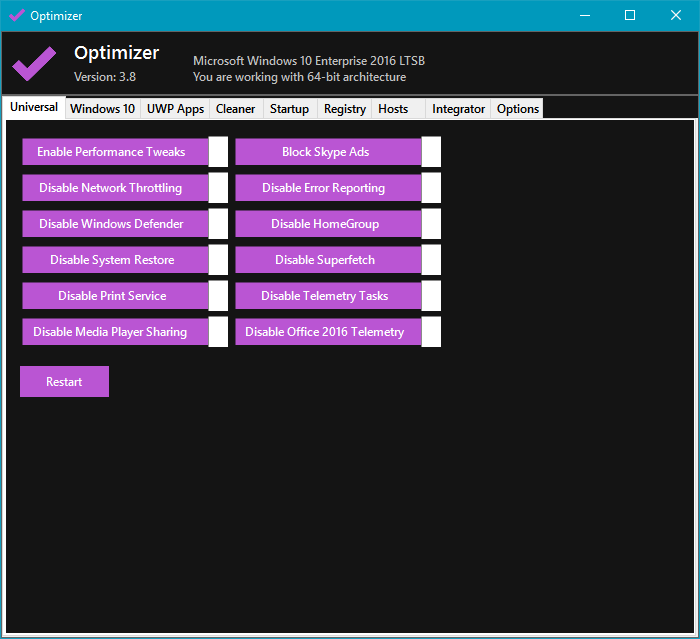
Optimizer 17.0 has been launched as a versatile portable application designed to enhance system performance, improve privacy, and bolster security. It includes several useful features, such as a drive cleaner, system tweaks, a startup manager, a HOST editor, and more. The user interface is organized into tabs, including Universal, Windows 10, Startup, Registry, Hosts, and Options, making it easy to navigate.
The design of the application features an engaging color scheme, primarily using purple boxes with white text that change to black when applied. Users can customize the app's appearance with six available color options, which adds a personal touch during usage.
Among its multiple functions, the Universal category offers various performance tweaks, such as blocking Skype advertisements, disabling error reporting, and turning off Windows Defender. The Windows 10 tab provides advanced options that go beyond typical tweaks, allowing users to uninstall features like OneDrive, Game Bar, Cortana, and Xbox, while also offering numerous privacy settings that are not commonly found in other similar tools.
The PC Cleaner feature aims to eliminate junk files, although it lacks detailed summaries, which may lead some users to hesitate in utilizing it. The Startup tab allows users to manage startup programs effectively by providing options to remove them, locate their registry entries, and find the associated files.
The Hosts tab serves as a user-friendly way to view, edit, and add entries to the Hosts file, enhancing the application's utility. One standout feature is the Integrator, which enables users to customize the right-click context menu by adding or removing items easily. This feature includes several pre-made items, further enhancing convenience.
Optimizer is particularly beneficial for users post-clean installation, addressing common issues and annoyances. However, its unique features and effectiveness in comparison to other tweaking tools make it a valuable tool for anyone looking to optimize their system.
Extension: Future Prospects and User Guidance
As technology evolves, so will the capabilities of tools like Optimizer. Future updates could include more advanced analytics for junk file cleanup, deeper integration with cloud storage management, and enhanced real-time monitoring of system performance. Users are encouraged to explore each feature thoroughly to maximize the application's potential.
To get started, users should prioritize the Universal and Windows 10 tabs for immediate performance improvements. Regularly updating the application will ensure access to the latest features and security enhancements, thereby maintaining optimal system performance. For best results, it is recommended to use Optimizer in conjunction with other maintenance practices, such as regular backups and system updates, to ensure a well-rounded approach to system management
The design of the application features an engaging color scheme, primarily using purple boxes with white text that change to black when applied. Users can customize the app's appearance with six available color options, which adds a personal touch during usage.
Among its multiple functions, the Universal category offers various performance tweaks, such as blocking Skype advertisements, disabling error reporting, and turning off Windows Defender. The Windows 10 tab provides advanced options that go beyond typical tweaks, allowing users to uninstall features like OneDrive, Game Bar, Cortana, and Xbox, while also offering numerous privacy settings that are not commonly found in other similar tools.
The PC Cleaner feature aims to eliminate junk files, although it lacks detailed summaries, which may lead some users to hesitate in utilizing it. The Startup tab allows users to manage startup programs effectively by providing options to remove them, locate their registry entries, and find the associated files.
The Hosts tab serves as a user-friendly way to view, edit, and add entries to the Hosts file, enhancing the application's utility. One standout feature is the Integrator, which enables users to customize the right-click context menu by adding or removing items easily. This feature includes several pre-made items, further enhancing convenience.
Optimizer is particularly beneficial for users post-clean installation, addressing common issues and annoyances. However, its unique features and effectiveness in comparison to other tweaking tools make it a valuable tool for anyone looking to optimize their system.
Extension: Future Prospects and User Guidance
As technology evolves, so will the capabilities of tools like Optimizer. Future updates could include more advanced analytics for junk file cleanup, deeper integration with cloud storage management, and enhanced real-time monitoring of system performance. Users are encouraged to explore each feature thoroughly to maximize the application's potential.
To get started, users should prioritize the Universal and Windows 10 tabs for immediate performance improvements. Regularly updating the application will ensure access to the latest features and security enhancements, thereby maintaining optimal system performance. For best results, it is recommended to use Optimizer in conjunction with other maintenance practices, such as regular backups and system updates, to ensure a well-rounded approach to system management
Optimizer 17.0 released
Optimizer is a portable app with a drive cleaner, system tweaks, startup manager, HOST editor, and more to protect your privacy and increase security.