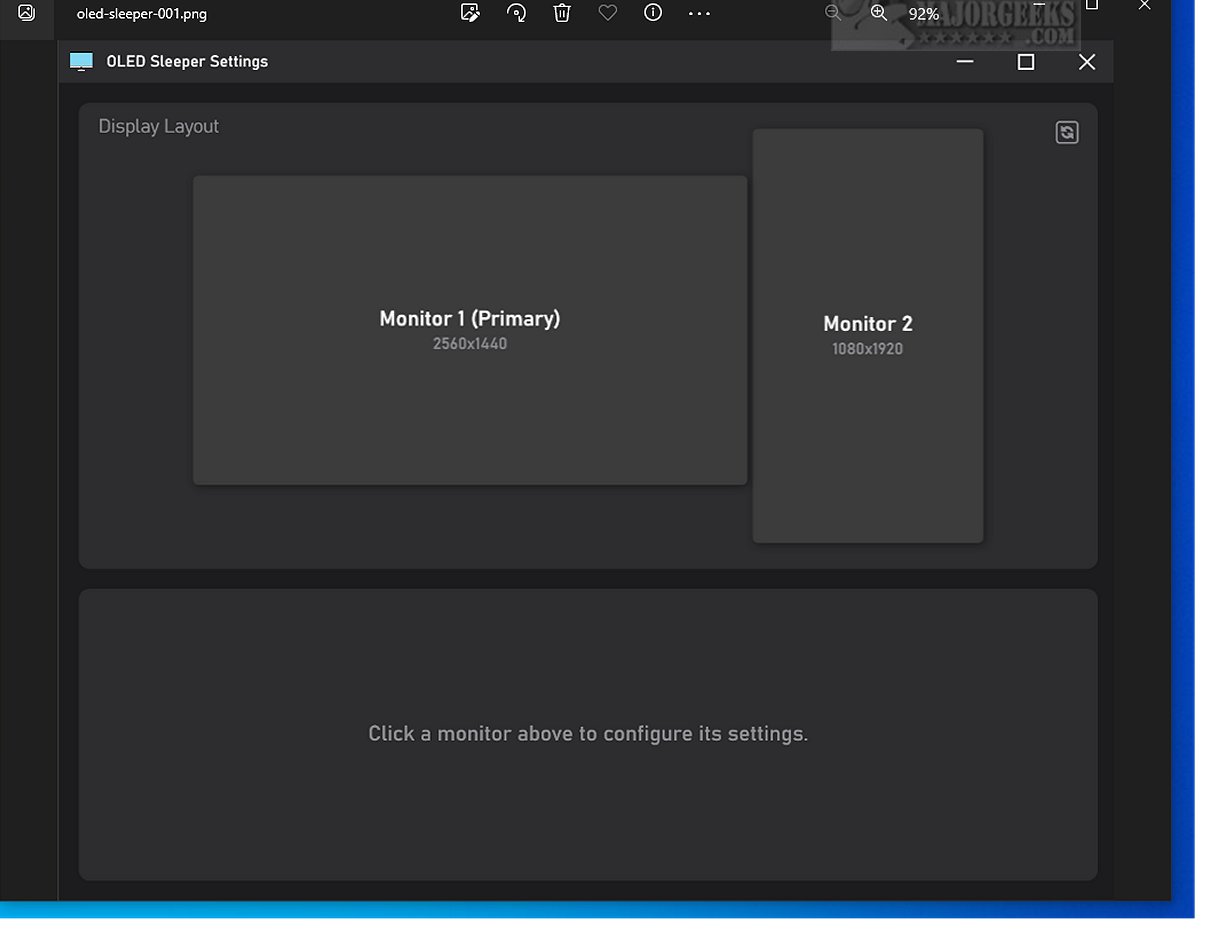
The latest release of OLED Sleeper, version 2.2.0, introduces enhancements that enrich your desktop experience by automatically transitioning selected monitors to a black screen after a set period of inactivity. This innovative feature not only conserves energy but also effectively prevents screen burn-in, a common issue with OLED displays.
Key Features and Functionality
OLED Sleeper is a fully native Windows application built using Windows Presentation Foundation (WPF), ensuring no reliance on external dependencies or third-party tools. The update boasts a refined user interface and a more robust architectural framework, leading to improved performance and usability. Users can customize idle times to align with their workflow, promoting a cleaner and more efficient workspace.
Operational Mechanics
When a designated monitor remains idle for a user-defined duration, OLED Sleeper provides two main options: it can overlay a pure black screen or reduce the monitor's brightness, depending on the chosen mode. This dual functionality not only aids in protecting OLED screens from burn-in but also minimizes distractions, fostering a more focused work environment. The software features a comprehensive “How to Use” section available on the developer's repository.
Additional Features:
- Idle Detection Modes: Users can choose from three modes to determine monitor idleness:
- Mouse Movement: Tracks cursor activity on the target monitor.
- Focused Application: Monitors activity within the active window on the selected screen.
- System-Wide Input: Observes overall keyboard and mouse input across the entire system, akin to standard Windows idle detection.
- Per-Monitor Control: Users can independently blackout or dim any monitor.
- Action Modes: Choose between full blackout or dimming (for monitors that support DDC/CI).
- Focus Mode: Temporarily hides secondary screens to reduce distractions.
- Instant Wake-Up: Monitors immediately return to full brightness upon detecting user activity.
Benefits for LCD Users
OLED Sleeper is also advantageous for LCD users, allowing them to turn off secondary monitors and thereby enhance focus while working or gaming.
Hardware Protection and User Experience
By extending the longevity of OLED screens and improving focus in multi-monitor setups, OLED Sleeper operates quietly in the background, effectively monitoring user activity.
Conclusion
With the introduction of OLED Sleeper, Windows users can enjoy a seamless, distraction-free workspace while safeguarding their hardware from potential burn-in issues. The software elegantly dims or blacks out inactive monitors, ensuring that screens remain pristine and user focus remains uninterrupted. For optimal performance, OLED Sleeper requires AutoHotkey and DDC/CI support for dimming functionality.
Related Resources:
- Instructions on enabling or disabling adaptive brightness in Windows 10/11.
- Guide on how to turn off monitors on demand.
- Tips for finding and repairing stuck or dead pixels on LCD displays.
This version of OLED Sleeper presents an ideal solution for enhancing productivity and ensuring the longevity of display hardware
Key Features and Functionality
OLED Sleeper is a fully native Windows application built using Windows Presentation Foundation (WPF), ensuring no reliance on external dependencies or third-party tools. The update boasts a refined user interface and a more robust architectural framework, leading to improved performance and usability. Users can customize idle times to align with their workflow, promoting a cleaner and more efficient workspace.
Operational Mechanics
When a designated monitor remains idle for a user-defined duration, OLED Sleeper provides two main options: it can overlay a pure black screen or reduce the monitor's brightness, depending on the chosen mode. This dual functionality not only aids in protecting OLED screens from burn-in but also minimizes distractions, fostering a more focused work environment. The software features a comprehensive “How to Use” section available on the developer's repository.
Additional Features:
- Idle Detection Modes: Users can choose from three modes to determine monitor idleness:
- Mouse Movement: Tracks cursor activity on the target monitor.
- Focused Application: Monitors activity within the active window on the selected screen.
- System-Wide Input: Observes overall keyboard and mouse input across the entire system, akin to standard Windows idle detection.
- Per-Monitor Control: Users can independently blackout or dim any monitor.
- Action Modes: Choose between full blackout or dimming (for monitors that support DDC/CI).
- Focus Mode: Temporarily hides secondary screens to reduce distractions.
- Instant Wake-Up: Monitors immediately return to full brightness upon detecting user activity.
Benefits for LCD Users
OLED Sleeper is also advantageous for LCD users, allowing them to turn off secondary monitors and thereby enhance focus while working or gaming.
Hardware Protection and User Experience
By extending the longevity of OLED screens and improving focus in multi-monitor setups, OLED Sleeper operates quietly in the background, effectively monitoring user activity.
Conclusion
With the introduction of OLED Sleeper, Windows users can enjoy a seamless, distraction-free workspace while safeguarding their hardware from potential burn-in issues. The software elegantly dims or blacks out inactive monitors, ensuring that screens remain pristine and user focus remains uninterrupted. For optimal performance, OLED Sleeper requires AutoHotkey and DDC/CI support for dimming functionality.
Related Resources:
- Instructions on enabling or disabling adaptive brightness in Windows 10/11.
- Guide on how to turn off monitors on demand.
- Tips for finding and repairing stuck or dead pixels on LCD displays.
This version of OLED Sleeper presents an ideal solution for enhancing productivity and ensuring the longevity of display hardware
OLED Sleeper 2.2.0 released
OLED Sleeper enhances your desktop experience by seamlessly transitioning to a black screen on any selected monitor after a predetermined period of inactivity. This smart feature not only saves energy but also helps in preventing screen burn-in.