Minimal Image Viewer is a lightweight image viewing application crafted in C++ and tailored specifically for Windows users, emphasizing both performance and minimalistic design. By leveraging native Windows APIs and the Windows Imaging Component (WIC), the application delivers dependable functionality for those seeking an efficient and straightforward image viewing experience.
Application Overview
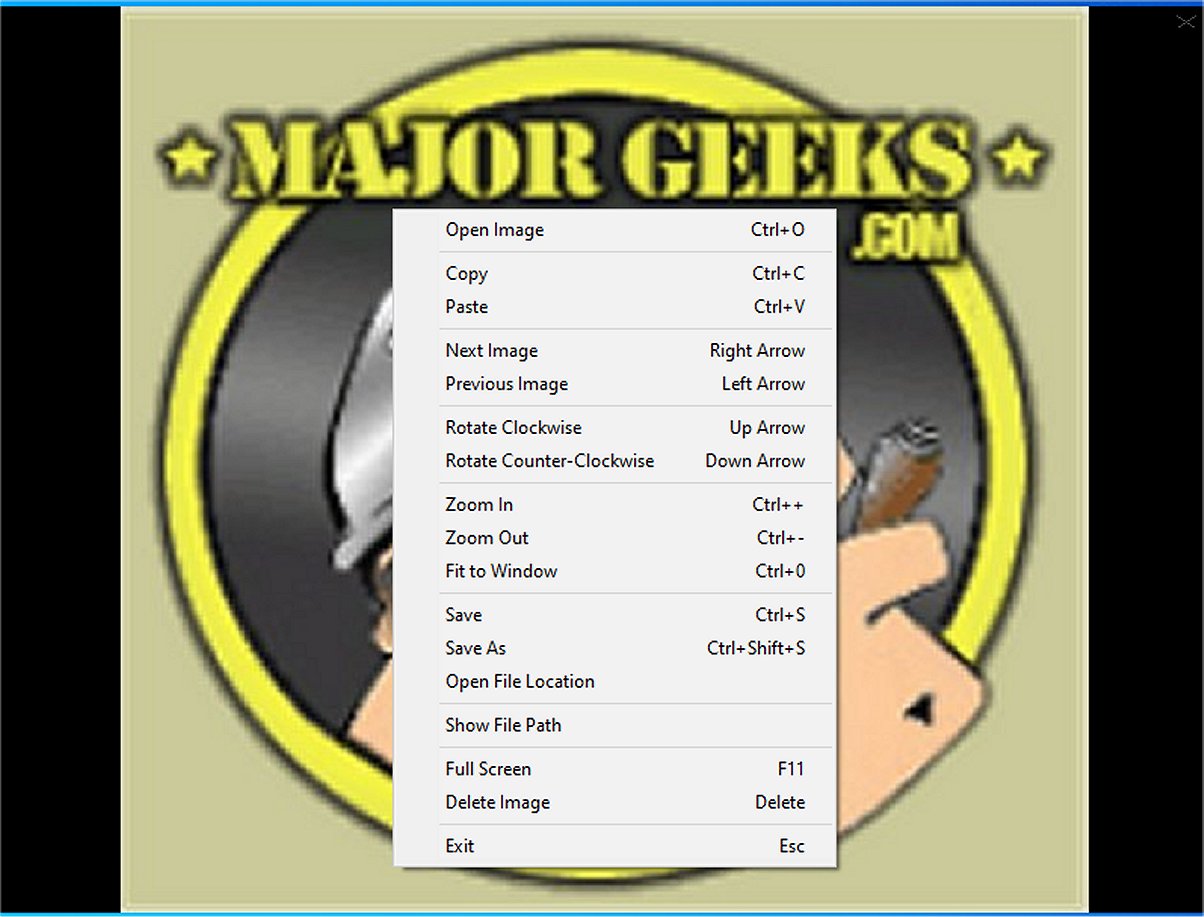
Minimal Image Viewer offers a simple interface that prioritizes privacy and usability. Users are welcomed by a sleek, black, borderless window upon launching the program. Images can be imported easily via drag-and-drop or through the right-click context menu, where users can access the traditional “Open” dialog to select image files.
Context Menu Functionality
The context menu in Minimal Image Viewer provides limited but useful options, including the ability to copy the currently displayed image to the clipboard or to paste an image from the clipboard into the viewer.
Navigating the Application
Users can effortlessly navigate through images in a selected folder, with support for a wide variety of file formats, including common graphic types, due to the integration of the Windows Imaging Component. Viewing features, though minimal, are practical, allowing for rotating images, adjusting zoom levels, and switching to full-screen mode. The application also facilitates easy organization of images, enabling users to save or delete images with just a click or keystroke.
Control Shortcuts
The application boasts a range of keyboard shortcuts for enhanced usability:
- Open: Ctrl+O or right-click → "Open Image."
- Navigate: Left/Right arrows or right-click → "Next/Previous Image."
- Zoom: Ctrl++/-, mouse wheel, or right-click → "Zoom In/Out"; Ctrl+0 or double-click to fit.
- Rotate: Up/Down arrows or right-click → "Rotate Clockwise/Counterclockwise."
- Save: Ctrl+S or right-click → "Save Image" (preserves original format).
- Delete: Delete or right-click → "Delete Image" (to Recycle Bin).
- Full-Screen: F11 or right-click → "Full Screen."
- Move/Resize: Drag window or edges (non-full-screen).
- Exit: Esc or right-click → "Exit."
- Copy: Ctrl+C.
- Paste: Ctrl+V.
Conclusion
In summary, Minimal Image Viewer is an efficient and minimalist tool that guarantees a distraction-free image viewing experience. Its intuitive design and fully offline operation enhance user privacy, making it an ideal choice for those who want to enjoy their images without unnecessary distractions or data sharing concerns.
Future Enhancements
Looking ahead, potential enhancements for Minimal Image Viewer could include support for additional image formats, more advanced editing features, and customizable themes to further tailor the user experience. Integrating cloud storage options could also provide users with greater flexibility in managing their images while maintaining the application's core focus on privacy and minimalism
Application Overview
Minimal Image Viewer offers a simple interface that prioritizes privacy and usability. Users are welcomed by a sleek, black, borderless window upon launching the program. Images can be imported easily via drag-and-drop or through the right-click context menu, where users can access the traditional “Open” dialog to select image files.
Context Menu Functionality
The context menu in Minimal Image Viewer provides limited but useful options, including the ability to copy the currently displayed image to the clipboard or to paste an image from the clipboard into the viewer.
Navigating the Application
Users can effortlessly navigate through images in a selected folder, with support for a wide variety of file formats, including common graphic types, due to the integration of the Windows Imaging Component. Viewing features, though minimal, are practical, allowing for rotating images, adjusting zoom levels, and switching to full-screen mode. The application also facilitates easy organization of images, enabling users to save or delete images with just a click or keystroke.
Control Shortcuts
The application boasts a range of keyboard shortcuts for enhanced usability:
- Open: Ctrl+O or right-click → "Open Image."
- Navigate: Left/Right arrows or right-click → "Next/Previous Image."
- Zoom: Ctrl++/-, mouse wheel, or right-click → "Zoom In/Out"; Ctrl+0 or double-click to fit.
- Rotate: Up/Down arrows or right-click → "Rotate Clockwise/Counterclockwise."
- Save: Ctrl+S or right-click → "Save Image" (preserves original format).
- Delete: Delete or right-click → "Delete Image" (to Recycle Bin).
- Full-Screen: F11 or right-click → "Full Screen."
- Move/Resize: Drag window or edges (non-full-screen).
- Exit: Esc or right-click → "Exit."
- Copy: Ctrl+C.
- Paste: Ctrl+V.
Conclusion
In summary, Minimal Image Viewer is an efficient and minimalist tool that guarantees a distraction-free image viewing experience. Its intuitive design and fully offline operation enhance user privacy, making it an ideal choice for those who want to enjoy their images without unnecessary distractions or data sharing concerns.
Future Enhancements
Looking ahead, potential enhancements for Minimal Image Viewer could include support for additional image formats, more advanced editing features, and customizable themes to further tailor the user experience. Integrating cloud storage options could also provide users with greater flexibility in managing their images while maintaining the application's core focus on privacy and minimalism
Minimal Image Viewer 2.0.5 released
Minimal Image Viewer is an image viewing application developed in C++ that is specifically designed for Windows. It is designed with a focus on both performance and minimalism. By utilizing native Windows APIs, along with the Windows Imaging Component (WIC), the application provides reliable functionality for users seeking an efficient way to view images.