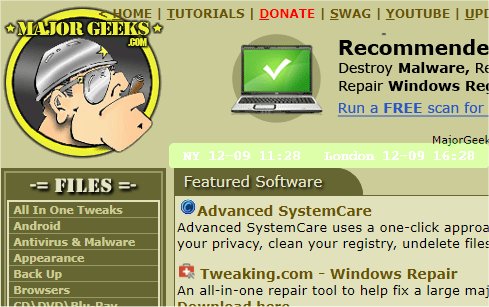
The newly released version 0.2.54 of mclocks is an open-source application designed to display multiple clocks for different time zones. This functionality is particularly useful for individuals who frequently travel or participate in international meetings, providing a clear overview of various global times at a glance.
Configuration and Customization
Users can easily add and customize clocks by editing the `config.json` configuration file using a text editor like Notepad. An example configuration is provided below:
This JSON structure allows users to specify the name and time zone for each clock, as well as customize the date and time format, color scheme, and additional display options.
Related Guides
In addition to the mclocks application, users may find the following resources useful:
- How to Show Multiple Clocks on Windows
- How to Fix Incorrect Date or Time with Windows Clock
- How to Show Time Only on the Windows 10 & 11 Taskbar
- How to Remove the Clock from Windows 10 & 11 Taskbar
Extensions and Future Developments
As the demand for multi-time zone applications grows, future updates to mclocks may include enhanced features such as:
- Automatic detection of user location to suggest relevant time zones.
- Integration with calendar applications to display meeting times in various time zones.
- User-friendly graphical interface improvements for easier configuration and clock management.
- Mobile compatibility to allow users to access their time zone clocks on smartphones and tablets.
Overall, mclocks 0.2.54 offers a straightforward solution for users needing to keep track of multiple time zones, with potential for further enhancements to meet evolving user needs
Configuration and Customization
Users can easily add and customize clocks by editing the `config.json` configuration file using a text editor like Notepad. An example configuration is provided below:
json{
"clocks": [
{ "name": "NY", "timezone": "America/New_York" },
{ "name": "London", "timezone": "Europe/London" }
],
"formatDateTime": "MM-DD ddd HH:mm",
"localeDateTime": "en",
"opacity": 1,
"fontColor": "#fff",
"fontSize": 14,
"bgColor": "#151",
"onlyText": false,
"alwaysOnTop": false
}
This JSON structure allows users to specify the name and time zone for each clock, as well as customize the date and time format, color scheme, and additional display options.
Related Guides
In addition to the mclocks application, users may find the following resources useful:
- How to Show Multiple Clocks on Windows
- How to Fix Incorrect Date or Time with Windows Clock
- How to Show Time Only on the Windows 10 & 11 Taskbar
- How to Remove the Clock from Windows 10 & 11 Taskbar
Extensions and Future Developments
As the demand for multi-time zone applications grows, future updates to mclocks may include enhanced features such as:
- Automatic detection of user location to suggest relevant time zones.
- Integration with calendar applications to display meeting times in various time zones.
- User-friendly graphical interface improvements for easier configuration and clock management.
- Mobile compatibility to allow users to access their time zone clocks on smartphones and tablets.
Overall, mclocks 0.2.54 offers a straightforward solution for users needing to keep track of multiple time zones, with potential for further enhancements to meet evolving user needs
mclocks 0.2.54 released
mclocks is an Open Source app that allows you to display multiple time zone clocks.