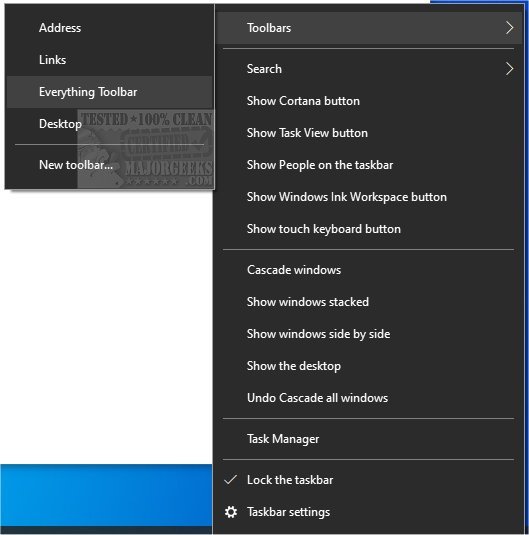
The release of Everything Toolbar version 3.5.1 enhances user experience by providing seamless integration of the Everything search functionality directly into the Windows taskbar. This tool enables users to swiftly find files, folders, and other items by name, significantly improving file management efficiency. With Everything Toolbar, users can index files quickly, perform searches effortlessly, and share files with others with ease.
To set up Everything Toolbar, follow these steps:
1. Extract the contents of the downloaded file.
2. Run the install.cmd file with administrative privileges.
3. Enable EverythingToolbar by right-clicking on the taskbar to access the context menu. Be aware that it might require opening the context menu twice, as it may not appear the first time.
In addition to Everything Toolbar, users may find other related guides useful, such as how to manage the search box or icon in Windows, delete and rebuild the Windows search index, enable or disable enhanced mode for Windows search, and disable Bing search in the Windows Start Menu.
To extend the utility of the Everything Toolbar, future updates could include features such as personalized search filters, enhanced sharing options for cloud storage integration, and customizable keyboard shortcuts to further streamline the search experience. Moreover, incorporating user feedback could lead to improvements in the interface and functionality, making it an even more powerful tool for Windows users
Everything Toolbar 3.5.1 released
Everything Toolbar provides you with an easy-to-utilize Everything integration for the Windows toolbar.