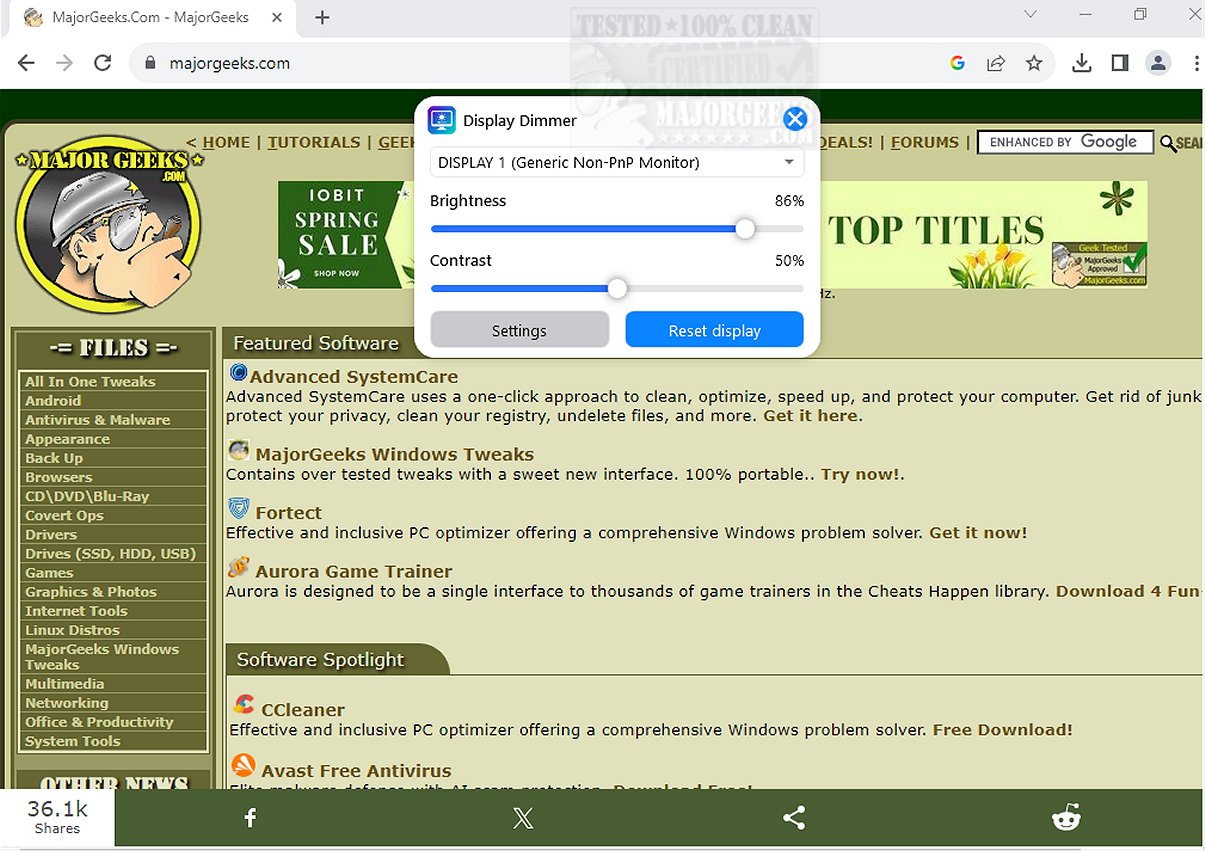
The latest version of Display Dimmer, 2.2.2, empowers users to easily manage the brightness of all external monitors from a centralized interface. This intuitive tool allows users to modify brightness settings for any connected display directly within the Windows environment, eliminating the need to awkwardly adjust settings manually or navigate complex on-screen menus.
Key Features of Display Dimmer:
- Control brightness and contrast on a per-monitor basis for external displays.
- Ideal for multi-monitor configurations, including dual or triple setups and docking stations.
- Schedule brightness adjustments based on time of day and create custom brightness profiles for individual applications.
- Remembers user-defined brightness levels for each monitor.
- Quick access via a tray icon and the option to launch with Windows, restoring saved brightness settings automatically.
- Includes light and dark themes for user preference.
- Designed as a lightweight, native Windows Presentation Foundation (WPF) application, ensuring responsiveness and efficiency.
Technical Aspects:
Display Dimmer leverages the Display Data Channel Command Interface (DDC/CI), enabling direct hardware control of brightness levels when compatible with the monitor. For monitors that lack full DDC/CI support or show inconsistent behavior, Display Dimmer incorporates safe GPU dimming techniques, providing users with a dependable alternative for achieving optimal brightness levels.
User Experience:
With its streamlined interface and powerful functionality, Display Dimmer revolutionizes the way users manage screen brightness, making it customizable to fit individual preferences and environmental conditions. Enjoy a more comfortable viewing experience that reduces eye strain during extended use.
Geek Verdict:
Elevate your viewing experience with Display Dimmer, which allows for effortless brightness and contrast adjustments for any connected display directly from the Windows interface. Say farewell to the inconvenience of manually adjusting monitor settings—experience seamless control right at your fingertips!
Related Articles:
- How to Enable or Disable Adaptive Brightness in Windows 10
- How to Turn Off Monitor Only on Demand
- How to Find and Repair Stuck or Dead Pixels on an LCD Monitor
Extended Features and Future Prospects:
Looking ahead, future updates could integrate additional features such as support for color temperature adjustments, enhanced scheduling options for brightness changes based on user activity, and improved compatibility with a broader range of display technologies. Moreover, incorporating user feedback could lead to more customization options, such as creating profiles based on specific tasks (like gaming or graphic design) and smarter algorithms that automatically adjust brightness based on ambient light conditions
Key Features of Display Dimmer:
- Control brightness and contrast on a per-monitor basis for external displays.
- Ideal for multi-monitor configurations, including dual or triple setups and docking stations.
- Schedule brightness adjustments based on time of day and create custom brightness profiles for individual applications.
- Remembers user-defined brightness levels for each monitor.
- Quick access via a tray icon and the option to launch with Windows, restoring saved brightness settings automatically.
- Includes light and dark themes for user preference.
- Designed as a lightweight, native Windows Presentation Foundation (WPF) application, ensuring responsiveness and efficiency.
Technical Aspects:
Display Dimmer leverages the Display Data Channel Command Interface (DDC/CI), enabling direct hardware control of brightness levels when compatible with the monitor. For monitors that lack full DDC/CI support or show inconsistent behavior, Display Dimmer incorporates safe GPU dimming techniques, providing users with a dependable alternative for achieving optimal brightness levels.
User Experience:
With its streamlined interface and powerful functionality, Display Dimmer revolutionizes the way users manage screen brightness, making it customizable to fit individual preferences and environmental conditions. Enjoy a more comfortable viewing experience that reduces eye strain during extended use.
Geek Verdict:
Elevate your viewing experience with Display Dimmer, which allows for effortless brightness and contrast adjustments for any connected display directly from the Windows interface. Say farewell to the inconvenience of manually adjusting monitor settings—experience seamless control right at your fingertips!
Related Articles:
- How to Enable or Disable Adaptive Brightness in Windows 10
- How to Turn Off Monitor Only on Demand
- How to Find and Repair Stuck or Dead Pixels on an LCD Monitor
Extended Features and Future Prospects:
Looking ahead, future updates could integrate additional features such as support for color temperature adjustments, enhanced scheduling options for brightness changes based on user activity, and improved compatibility with a broader range of display technologies. Moreover, incorporating user feedback could lead to more customization options, such as creating profiles based on specific tasks (like gaming or graphic design) and smarter algorithms that automatically adjust brightness based on ambient light conditions
Display Dimmer 2.2.2 released
Display Dimmer enables you to effortlessly control the brightness of all your external monitors from a single location. This user-friendly tool lets you adjust the brightness settings for any connected display directly from your Windows interface.