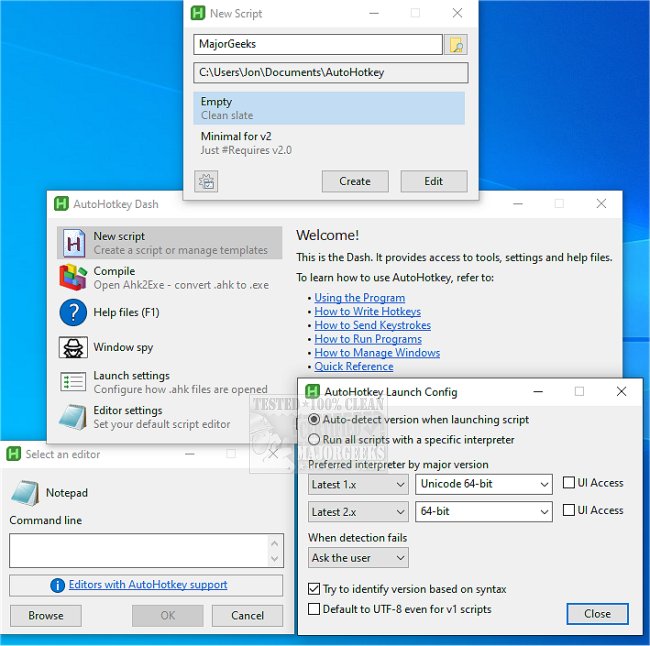
AutoHotkey is a powerful and free desktop automation tool for Windows that enables users to create custom keyboard shortcuts, text replacements, macros, and scripts to automate repetitive tasks. Ideal for individuals who frequently perform the same actions, such as clicking, typing, or navigating through Windows, AutoHotkey allows these processes to be streamlined, reducing the mundane workload on personal computers.
At its core, AutoHotkey transforms key combinations into specified actions, which can range from launching programs and pasting common text to remapping keys and automating complex workflows involving multiple applications. Its simplicity allows users to quickly bind a key or combination to an action, while its depth offers the potential for advanced desktop automation systems.
Users might find AutoHotkey particularly beneficial for:
- Opening frequently visited websites or folders with a simple keypress.
- Typing repetitive email replies, signatures, or snippets of code effortlessly.
- Remapping less-used keyboard keys to more beneficial functions.
- Automating data entry for older Windows applications.
- Creating custom shortcuts for software that lacks built-in options.
For instance, a user could set up a script that opens MajorGeeks by pressing the combination Windows + M + G. This is a straightforward approach that exemplifies how AutoHotkey can save time.
A simple AutoHotkey script might look like this, where pressing Windows + M + G opens a specified URL:
Additionally, users can remap keys, such as turning Caps Lock into the Escape key, which can be particularly useful for those who rarely use that function.
- Custom Hotkeys: Assign various actions to any key or combination, facilitating quick access to applications or commands.
- Text Expansion: Create shortcuts for lengthy text entries, such as inserting a full email signature with a simple abbreviation.
- Key Remapping: Modify key functions to accommodate personal preferences or fix hardware issues.
- Automation: Execute repetitive tasks involving keystrokes and mouse clicks, which is especially helpful for tedious office tasks or legacy software.
- Simple Interfaces: AutoHotkey allows for the creation of basic windows and menus to enhance scripts.
In gaming, for example, a user could simplify controls by binding an action (like jumping and firing) to a single key. However, caution is advised when using automation for online games due to strict anti-cheat measures.
To use AutoHotkey, one would:
1. Download and install AutoHotkey.
2. Create a new script file on the desktop or in a desired folder.
3. Edit the script with commands using a text editor.
4. Save and run the script, indicated by the AutoHotkey icon in the system tray for easy access.
AutoHotkey excels in addressing frequent annoyances in daily computing, such as repetitive typing or navigating through menus. Even simple scripts can significantly enhance productivity.
However, users should note that AutoHotkey requires some basic scripting knowledge, and errors can lead to unexpected outcomes. Additionally, there is a learning curve, particularly when transitioning from older AutoHotkey v1 scripts to the newer v2 syntax.
Overall, AutoHotkey is a valuable tool for Windows users looking to automate repetitive tasks and enhance efficiency. While it may require a bit of initial investment in learning, the payoff in productivity and ease of use is significant. Embracing AutoHotkey can help users maximize their computing experience, allowing their machines to handle the mundane tasks that clutter their workflow.
For those interested in further optimizing their productivity with keyboard shortcuts and automation, related resources include guides on increasing productivity with time-saving shortcuts, managing sticky keys in Windows, and customizing mouse functions
What AutoHotkey Can Do
At its core, AutoHotkey transforms key combinations into specified actions, which can range from launching programs and pasting common text to remapping keys and automating complex workflows involving multiple applications. Its simplicity allows users to quickly bind a key or combination to an action, while its depth offers the potential for advanced desktop automation systems.
Use Cases for AutoHotkey
Users might find AutoHotkey particularly beneficial for:
- Opening frequently visited websites or folders with a simple keypress.
- Typing repetitive email replies, signatures, or snippets of code effortlessly.
- Remapping less-used keyboard keys to more beneficial functions.
- Automating data entry for older Windows applications.
- Creating custom shortcuts for software that lacks built-in options.
For instance, a user could set up a script that opens MajorGeeks by pressing the combination Windows + M + G. This is a straightforward approach that exemplifies how AutoHotkey can save time.
Basic Script Example
A simple AutoHotkey script might look like this, where pressing Windows + M + G opens a specified URL:
ahk#mg::Run "https://www.majorgeeks.com"
Additionally, users can remap keys, such as turning Caps Lock into the Escape key, which can be particularly useful for those who rarely use that function.
Features of AutoHotkey
- Custom Hotkeys: Assign various actions to any key or combination, facilitating quick access to applications or commands.
- Text Expansion: Create shortcuts for lengthy text entries, such as inserting a full email signature with a simple abbreviation.
- Key Remapping: Modify key functions to accommodate personal preferences or fix hardware issues.
- Automation: Execute repetitive tasks involving keystrokes and mouse clicks, which is especially helpful for tedious office tasks or legacy software.
- Simple Interfaces: AutoHotkey allows for the creation of basic windows and menus to enhance scripts.
Practical Applications
In gaming, for example, a user could simplify controls by binding an action (like jumping and firing) to a single key. However, caution is advised when using automation for online games due to strict anti-cheat measures.
Getting Started with AutoHotkey
To use AutoHotkey, one would:
1. Download and install AutoHotkey.
2. Create a new script file on the desktop or in a desired folder.
3. Edit the script with commands using a text editor.
4. Save and run the script, indicated by the AutoHotkey icon in the system tray for easy access.
Advantages of Using AutoHotkey
AutoHotkey excels in addressing frequent annoyances in daily computing, such as repetitive typing or navigating through menus. Even simple scripts can significantly enhance productivity.
Limitations
However, users should note that AutoHotkey requires some basic scripting knowledge, and errors can lead to unexpected outcomes. Additionally, there is a learning curve, particularly when transitioning from older AutoHotkey v1 scripts to the newer v2 syntax.
Conclusion
Overall, AutoHotkey is a valuable tool for Windows users looking to automate repetitive tasks and enhance efficiency. While it may require a bit of initial investment in learning, the payoff in productivity and ease of use is significant. Embracing AutoHotkey can help users maximize their computing experience, allowing their machines to handle the mundane tasks that clutter their workflow.
Additional Resources
For those interested in further optimizing their productivity with keyboard shortcuts and automation, related resources include guides on increasing productivity with time-saving shortcuts, managing sticky keys in Windows, and customizing mouse functions
AutoHotkey 2.0.29 / 1.1.37.02 released
AutoHotkey provides you with a fast, scriptable freeware desktop automation tool with hotkeys.