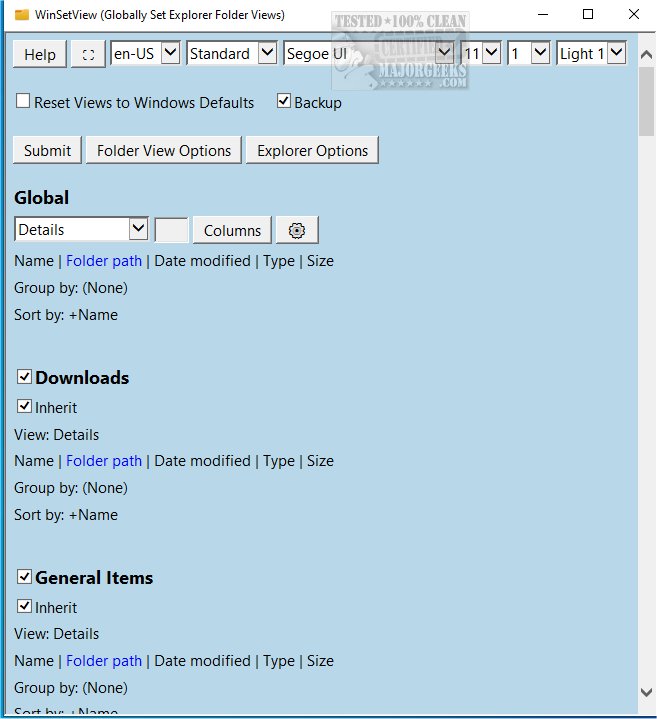
WinSetView 3.2.0 has been released, providing users with a powerful tool to customize Windows Explorer folder views on a global scale. This software allows users to set the Details View with a personalized selection of column headings, which will be applied across all folders in the system. The interface is designed to be user-friendly, making it straightforward to use, although it is recommended to close all open applications before running the tool to ensure that any open/save dialog views are updated correctly.
All modifications made by WinSetView are user-specific and are stored within the HKEY_CURRENT_USER section of the Windows registry, meaning that the tool does not alter system-wide settings and does not require administrative rights. Each time the tool is executed, it creates a unique backup of the affected registry values, allowing users to restore previous settings if needed. Additionally, there is an option to reset all Explorer views back to the default Windows settings.
To use WinSetView, simply double-click the WinSetView.exe file to launch the GUI. After making your selections, clicking submit will execute the changes by passing the chosen settings via an INI file to WinSetView.ps1, which then applies the modifications and restarts the Explorer interface.
In addition to its core functionality, users might find the following related topics beneficial: how to show hidden files, folders, or drives; how to show or hide file name extensions in the File Explorer context menu; how to add a Details Pane to the File Explorer context menu; and a comprehensive list of keyboard shortcuts for File Explorer.
In conclusion, WinSetView 3.2.0 is an essential tool for users looking to streamline their file management experience by customizing folder views according to their preferences, while also ensuring that their settings can be easily backed up and restored
All modifications made by WinSetView are user-specific and are stored within the HKEY_CURRENT_USER section of the Windows registry, meaning that the tool does not alter system-wide settings and does not require administrative rights. Each time the tool is executed, it creates a unique backup of the affected registry values, allowing users to restore previous settings if needed. Additionally, there is an option to reset all Explorer views back to the default Windows settings.
To use WinSetView, simply double-click the WinSetView.exe file to launch the GUI. After making your selections, clicking submit will execute the changes by passing the chosen settings via an INI file to WinSetView.ps1, which then applies the modifications and restarts the Explorer interface.
In addition to its core functionality, users might find the following related topics beneficial: how to show hidden files, folders, or drives; how to show or hide file name extensions in the File Explorer context menu; how to add a Details Pane to the File Explorer context menu; and a comprehensive list of keyboard shortcuts for File Explorer.
In conclusion, WinSetView 3.2.0 is an essential tool for users looking to streamline their file management experience by customizing folder views according to their preferences, while also ensuring that their settings can be easily backed up and restored
WinSetView 3.2.0 released
WinSetView allows you to set Windows Explorer folder views globally.