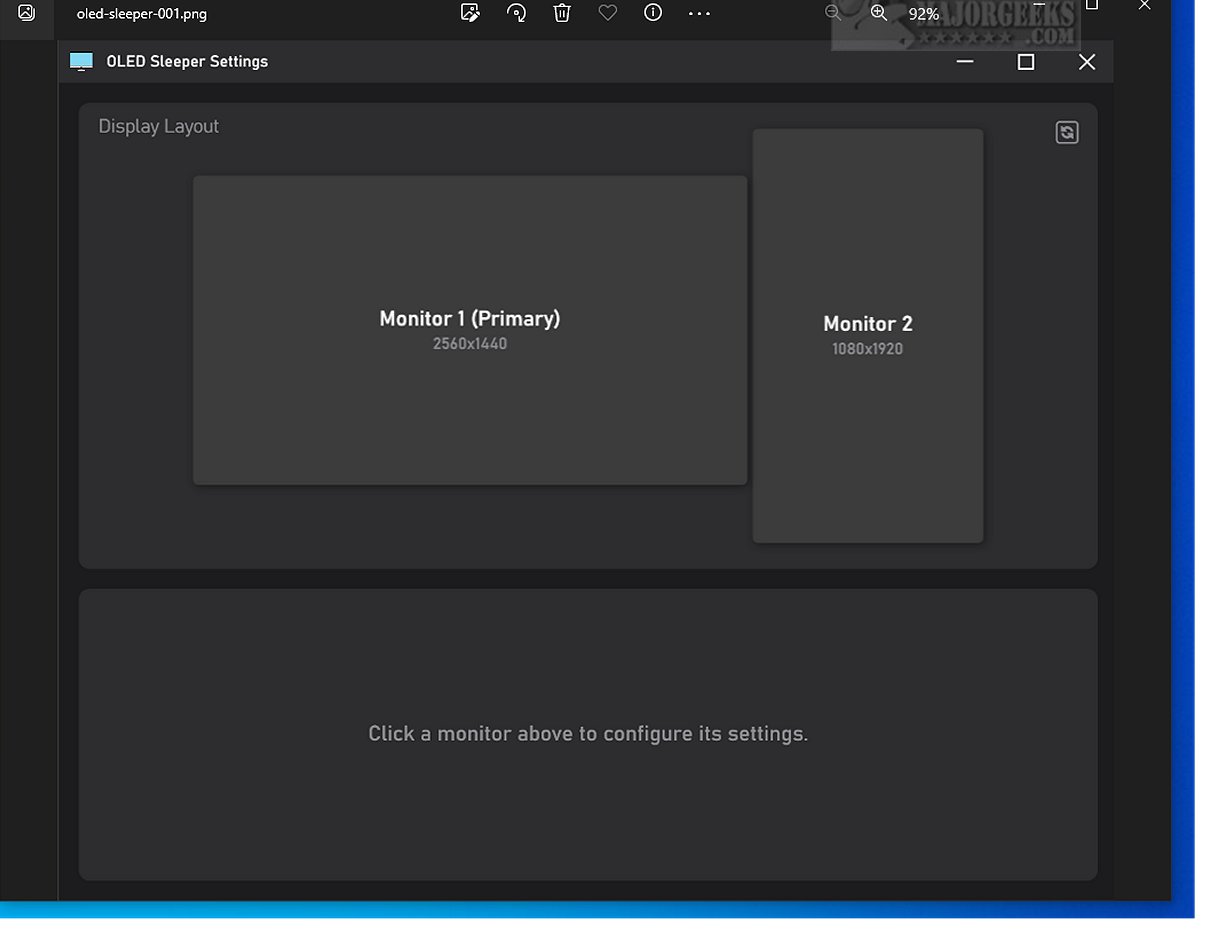
OLED Sleeper is a cutting-edge application designed to improve your desktop experience by automatically transitioning selected monitors to a black screen after a set period of inactivity. This innovative feature not only conserves energy but also safeguards your screen from burn-in, a common issue faced by OLED displays.
Key Features of OLED Sleeper
The newly released version, 2.0.0, is built as a fully native Windows application utilizing Windows Presentation Foundation (WPF), ensuring a refined user interface and enhanced performance. Users can customize the idle time according to their workflow preferences, allowing for a cleaner, more efficient workspace. When the mouse is moved towards the monitor, it awakens instantly, enabling a seamless return to work.
OLED Sleeper operates by monitoring user activity on the designated monitor. After a user-defined idle period, it can either overlay a pure black screen or reduce the monitor's brightness, depending on the selected mode. This not only prevents burn-in but also minimizes distractions, promoting a more focused working environment. The application features a comprehensive "How to Use" section available at the developer's repository for user guidance.
Advanced Functionalities
- Native WPF Application: Built entirely with Win32 calls, without external dependencies.
- Three Idle Detection Modes:
- Mouse Tracking: Detects cursor movement on the target monitor.
- Focused Application: Monitors activity within the currently active window.
- System-Wide Input: Detects keyboard and mouse input across the entire system.
- Per-Monitor Control: Allows independent blackout or dimming of any monitor.
- Two Action Modes: Users can choose between full blackout or dimming (DDC/CI supported).
- Focus Mode: Temporarily hides secondary screens to reduce distractions.
- Instant Wake-Up: Restores the monitor instantly upon detecting activity.
Benefits for LCD Users
OLED Sleeper is not just beneficial for OLED users; it also enhances the experience for LCD users by allowing them to turn off side monitors. This helps maintain focus and minimizes interruptions during work or gaming sessions.
Hardware Protection and User Experience
By extending the longevity of OLED screens and improving concentration in multi-monitor setups, OLED Sleeper operates quietly in the background, monitoring user activity through mouse movements or active windows. The application requires AutoHotkey and DDC/CI support for the dimming mode, which necessitates a monitor that supports DDC/CI brightness control via VCP codes.
Conclusion
With OLED Sleeper 2.0.0, users can enjoy a distraction-free workspace while effectively protecting their hardware. This tool blends functionality with peace of mind, allowing for a seamless and efficient working environment. Explore the benefits of OLED Sleeper and redefine your desktop experience today.
Related Articles:
- How to Enable or Disable Adaptive Brightness in Windows 10/11
- How to Turn Off Monitor Only on Demand
- How to Find and Repair Stuck or Dead Pixels on an LCD Monitor
By integrating OLED Sleeper into your routine, you can enhance productivity and prolong the life of your displays, making it a must-have tool for anyone using multiple monitors in their daily workflow
Key Features of OLED Sleeper
The newly released version, 2.0.0, is built as a fully native Windows application utilizing Windows Presentation Foundation (WPF), ensuring a refined user interface and enhanced performance. Users can customize the idle time according to their workflow preferences, allowing for a cleaner, more efficient workspace. When the mouse is moved towards the monitor, it awakens instantly, enabling a seamless return to work.
OLED Sleeper operates by monitoring user activity on the designated monitor. After a user-defined idle period, it can either overlay a pure black screen or reduce the monitor's brightness, depending on the selected mode. This not only prevents burn-in but also minimizes distractions, promoting a more focused working environment. The application features a comprehensive "How to Use" section available at the developer's repository for user guidance.
Advanced Functionalities
- Native WPF Application: Built entirely with Win32 calls, without external dependencies.
- Three Idle Detection Modes:
- Mouse Tracking: Detects cursor movement on the target monitor.
- Focused Application: Monitors activity within the currently active window.
- System-Wide Input: Detects keyboard and mouse input across the entire system.
- Per-Monitor Control: Allows independent blackout or dimming of any monitor.
- Two Action Modes: Users can choose between full blackout or dimming (DDC/CI supported).
- Focus Mode: Temporarily hides secondary screens to reduce distractions.
- Instant Wake-Up: Restores the monitor instantly upon detecting activity.
Benefits for LCD Users
OLED Sleeper is not just beneficial for OLED users; it also enhances the experience for LCD users by allowing them to turn off side monitors. This helps maintain focus and minimizes interruptions during work or gaming sessions.
Hardware Protection and User Experience
By extending the longevity of OLED screens and improving concentration in multi-monitor setups, OLED Sleeper operates quietly in the background, monitoring user activity through mouse movements or active windows. The application requires AutoHotkey and DDC/CI support for the dimming mode, which necessitates a monitor that supports DDC/CI brightness control via VCP codes.
Conclusion
With OLED Sleeper 2.0.0, users can enjoy a distraction-free workspace while effectively protecting their hardware. This tool blends functionality with peace of mind, allowing for a seamless and efficient working environment. Explore the benefits of OLED Sleeper and redefine your desktop experience today.
Related Articles:
- How to Enable or Disable Adaptive Brightness in Windows 10/11
- How to Turn Off Monitor Only on Demand
- How to Find and Repair Stuck or Dead Pixels on an LCD Monitor
By integrating OLED Sleeper into your routine, you can enhance productivity and prolong the life of your displays, making it a must-have tool for anyone using multiple monitors in their daily workflow
OLED Sleeper 2.0.0 released
OLED Sleeper enhances your desktop experience by seamlessly transitioning to a black screen on any selected monitor after a predetermined period of inactivity. This smart feature not only saves energy but also helps in preventing screen burn-in.