Minimal Image Viewer is a lightweight image viewing application, specifically crafted for Windows and developed in C++. The software emphasizes performance and minimalism, utilizing native Windows APIs and the Windows Imaging Component (WIC) to deliver reliable image viewing capabilities. This application is ideal for users seeking a straightforward and efficient way to view images without unnecessary features.
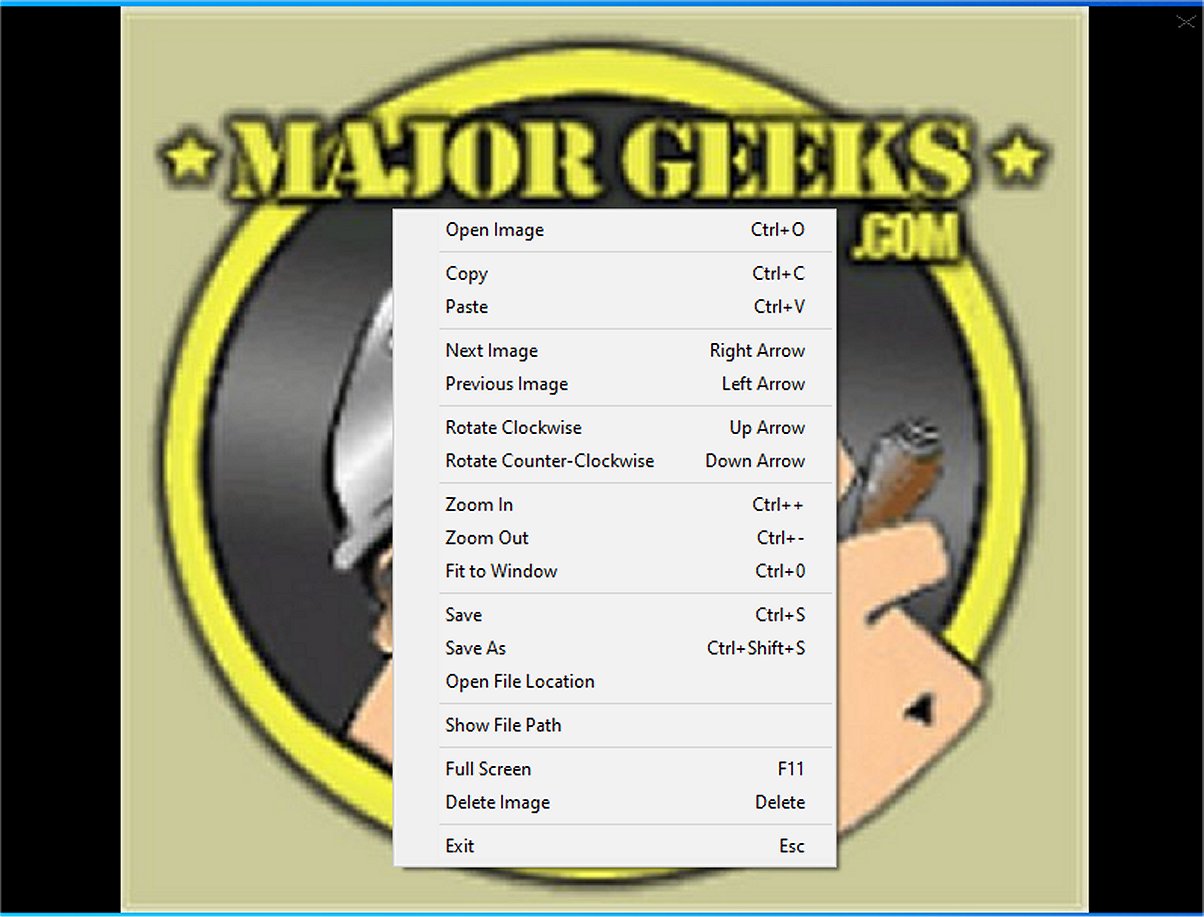
Upon launching Minimal Image Viewer, users encounter a sleek, borderless interface that reinforces its minimalist design. Images can be imported easily through drag-and-drop functionality or via the right-click context menu, which presents the traditional “Open” dialog for file selection.
Context Menu and Navigation
The context menu in Minimal Image Viewer offers a limited yet useful set of options, including the ability to copy the current image to the clipboard or paste images from the clipboard into the viewer. Navigation within the application is streamlined, enabling users to cycle through all compatible images in a selected folder effortlessly. The application supports various file formats, ensuring compatibility for a wide range of graphic types.
Viewing Features
The viewing options, while minimalistic, are practical. Users can rotate images, adjust zoom levels, fit images to the window, or switch to full-screen mode. Additionally, images can be saved or deleted with simple commands, making it easy to manage photo collections.
Control Shortcuts
Minimal Image Viewer includes several keyboard shortcuts to enhance user experience:
- Open Image: Ctrl+O or right-click → "Open Image"
- Navigate Images: Left/Right arrows or right-click → "Next/Previous Image"
- Zoom In/Out: Ctrl++/-, mouse wheel, or right-click → "Zoom In/Out"; Ctrl+0 or double-click to fit
- Rotate: Up/Down arrows or right-click → "Rotate Clockwise/Counterclockwise"
- Save Image: Ctrl+S or right-click → "Save Image" (preserves original format)
- Delete Image: Delete or right-click → "Delete Image" (to Recycle Bin)
- Full-Screen Mode: F11 or right-click → "Full Screen"
- Move/Resize Window: Drag window or edges (non-full-screen)
- Exit Application: Esc or right-click → "Exit"
- Copy/Paste: Ctrl+C to copy and Ctrl+V to paste
Overall Verdict
Minimal Image Viewer is an effective tool for users who prefer a distraction-free and privacy-oriented image viewing experience. Its user-friendly design, combined with offline functionality, allows for easy enjoyment of images without compromising data security.
Future Enhancements
To further improve the user experience, future updates could consider integrating features such as customizable themes, advanced image editing options, or enhanced organizational tools to manage image folders more effectively. Additionally, incorporating support for more file formats and improving the performance of high-resolution image handling could be beneficial for users who work with diverse image types.
For users interested in alternatives, they might also explore how to restore Windows Photo Viewer or manage folders in the Windows Photos app, as well as customize the context menu options for a more tailored experience
Upon launching Minimal Image Viewer, users encounter a sleek, borderless interface that reinforces its minimalist design. Images can be imported easily through drag-and-drop functionality or via the right-click context menu, which presents the traditional “Open” dialog for file selection.
Context Menu and Navigation
The context menu in Minimal Image Viewer offers a limited yet useful set of options, including the ability to copy the current image to the clipboard or paste images from the clipboard into the viewer. Navigation within the application is streamlined, enabling users to cycle through all compatible images in a selected folder effortlessly. The application supports various file formats, ensuring compatibility for a wide range of graphic types.
Viewing Features
The viewing options, while minimalistic, are practical. Users can rotate images, adjust zoom levels, fit images to the window, or switch to full-screen mode. Additionally, images can be saved or deleted with simple commands, making it easy to manage photo collections.
Control Shortcuts
Minimal Image Viewer includes several keyboard shortcuts to enhance user experience:
- Open Image: Ctrl+O or right-click → "Open Image"
- Navigate Images: Left/Right arrows or right-click → "Next/Previous Image"
- Zoom In/Out: Ctrl++/-, mouse wheel, or right-click → "Zoom In/Out"; Ctrl+0 or double-click to fit
- Rotate: Up/Down arrows or right-click → "Rotate Clockwise/Counterclockwise"
- Save Image: Ctrl+S or right-click → "Save Image" (preserves original format)
- Delete Image: Delete or right-click → "Delete Image" (to Recycle Bin)
- Full-Screen Mode: F11 or right-click → "Full Screen"
- Move/Resize Window: Drag window or edges (non-full-screen)
- Exit Application: Esc or right-click → "Exit"
- Copy/Paste: Ctrl+C to copy and Ctrl+V to paste
Overall Verdict
Minimal Image Viewer is an effective tool for users who prefer a distraction-free and privacy-oriented image viewing experience. Its user-friendly design, combined with offline functionality, allows for easy enjoyment of images without compromising data security.
Future Enhancements
To further improve the user experience, future updates could consider integrating features such as customizable themes, advanced image editing options, or enhanced organizational tools to manage image folders more effectively. Additionally, incorporating support for more file formats and improving the performance of high-resolution image handling could be beneficial for users who work with diverse image types.
For users interested in alternatives, they might also explore how to restore Windows Photo Viewer or manage folders in the Windows Photos app, as well as customize the context menu options for a more tailored experience
Minimal Image Viewer 1.7.1 released
Minimal Image Viewer is an image viewing application developed in C++ that is specifically designed for Windows. It is designed with a focus on both performance and minimalism. By utilizing native Windows APIs, along with the Windows Imaging Component (WIC), the application provides reliable functionality for users seeking an efficient way to view images.