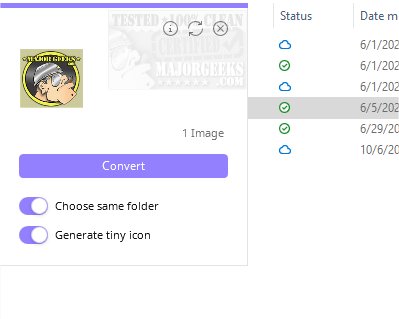
The latest version of Drop Icons, 3.6.1, simplifies the process of converting images into Windows-compatible icons (.ico files). The application features an intuitive drag-and-drop interface alongside standard file selection, ensuring a user-friendly experience without the need for complex settings.
One of the standout features is the ability to toggle between English and Spanish languages and customize the theme color according to user preference. By default, generated icons are saved in the same directory as the original images, but users can also specify a different folder for storage. Additionally, the application allows configurations to be saved in an .ini file for easy access later.
Drop Icons produces high-quality icons in multiple sizes, including 16, 32, 48, 64, 128, and 256 pixels. To prevent accidental duplication, the software ensures that any image already added cannot be re-added. Users can also create tiny icons when necessary. The adaptive corners feature lets users choose between rounded or simple corners based on their operating system version. Furthermore, users can enable or disable the "Topmost" feature, which keeps the application window on top of others.
For those needing assistance, a comprehensive usage guide is available at the developer's repository.
Extension: New Features and Future Updates
Looking ahead, future updates for Drop Icons could include additional features such as batch processing capabilities for converting multiple images at once, enhanced customization options for icon design, and integration with cloud storage services for easier file management. Additionally, introducing support for other file formats or platforms could broaden its user base. Regular updates and user feedback could drive the development of new tools, ensuring that Drop Icons remains a relevant and powerful utility for graphic designers and casual users alike
One of the standout features is the ability to toggle between English and Spanish languages and customize the theme color according to user preference. By default, generated icons are saved in the same directory as the original images, but users can also specify a different folder for storage. Additionally, the application allows configurations to be saved in an .ini file for easy access later.
Drop Icons produces high-quality icons in multiple sizes, including 16, 32, 48, 64, 128, and 256 pixels. To prevent accidental duplication, the software ensures that any image already added cannot be re-added. Users can also create tiny icons when necessary. The adaptive corners feature lets users choose between rounded or simple corners based on their operating system version. Furthermore, users can enable or disable the "Topmost" feature, which keeps the application window on top of others.
For those needing assistance, a comprehensive usage guide is available at the developer's repository.
Extension: New Features and Future Updates
Looking ahead, future updates for Drop Icons could include additional features such as batch processing capabilities for converting multiple images at once, enhanced customization options for icon design, and integration with cloud storage services for easier file management. Additionally, introducing support for other file formats or platforms could broaden its user base. Regular updates and user feedback could drive the development of new tools, ensuring that Drop Icons remains a relevant and powerful utility for graphic designers and casual users alike
Drop Icons 3.6.1 released
Drop Icons provides a simple option for converting images to icons (.ico) for Windows.