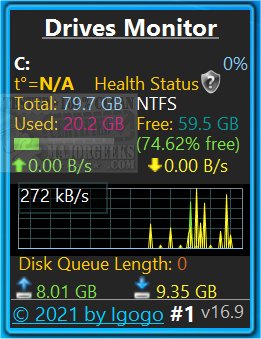
Drives Monitor 18.8 has been released, offering users a powerful tool for visualizing both physical and logical disk activity through performance monitor data. The application is compatible with Windows 8.1 and 10; however, users may need to install Desktop Gadgets Revived or similar software to ensure proper installation and functionality of Drives Monitor.
The app provides essential metrics for each disk, including the percentage of active time and the rate of bytes read and written per second. Users can interact with a real-time graph and click on specific drive letters, which opens a fly-out window displaying comprehensive details about the physical drive, such as model, capacity, type, number of partitions, cylinders, sectors, and more. An Eject button is also included for safely removing USB devices.
Drives Monitor is designed to support both hidden and mounted drives. It features a disk space usage bar that visually indicates free space levels: a red bar signals critically low disk space, while a yellow bar warns of low disk space. Users have the ability to configure the critical and warning thresholds for disk usage in the settings. Additionally, users can toggle between monitoring physical and logical drives, exclude specific drive letters or disk numbers from monitoring, and customize the displayed information.
In terms of related topics, users may find it useful to explore how to check hard disk health using WMIC, manage the SysMain (Superfetch) service, address issues with bad disk sectors or drive errors, and restore SSD performance through secure erasing.
Overall, Drives Monitor 18.8 enhances disk management and monitoring capabilities, providing critical insights and facilitating proactive maintenance for users concerned about their system's performance and storage health
The app provides essential metrics for each disk, including the percentage of active time and the rate of bytes read and written per second. Users can interact with a real-time graph and click on specific drive letters, which opens a fly-out window displaying comprehensive details about the physical drive, such as model, capacity, type, number of partitions, cylinders, sectors, and more. An Eject button is also included for safely removing USB devices.
Drives Monitor is designed to support both hidden and mounted drives. It features a disk space usage bar that visually indicates free space levels: a red bar signals critically low disk space, while a yellow bar warns of low disk space. Users have the ability to configure the critical and warning thresholds for disk usage in the settings. Additionally, users can toggle between monitoring physical and logical drives, exclude specific drive letters or disk numbers from monitoring, and customize the displayed information.
In terms of related topics, users may find it useful to explore how to check hard disk health using WMIC, manage the SysMain (Superfetch) service, address issues with bad disk sectors or drive errors, and restore SSD performance through secure erasing.
Overall, Drives Monitor 18.8 enhances disk management and monitoring capabilities, providing critical insights and facilitating proactive maintenance for users concerned about their system's performance and storage health
Drives Monitor 18.8 released
Drives Monitor utilizes performance monitor data to visualize physical or logical disk activity.