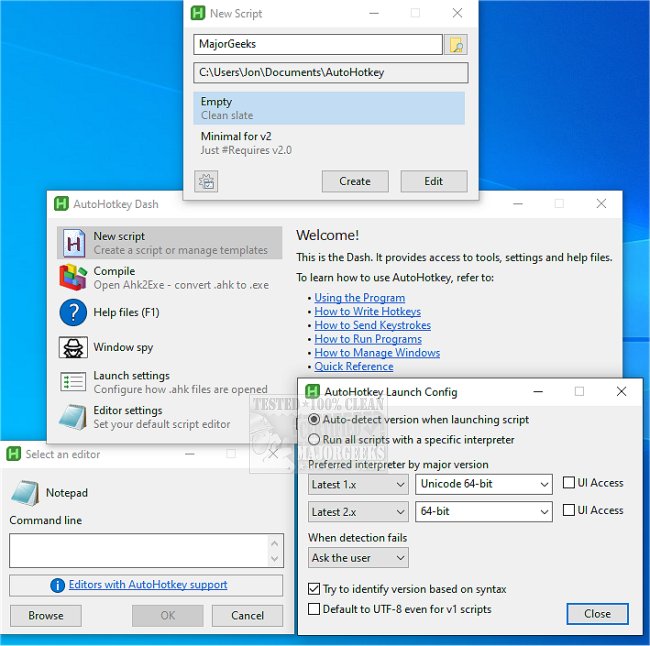
AutoHotkey is a powerful, free scripting tool designed for Windows that facilitates desktop automation through customized keyboard shortcuts, text replacements, macros, and automation scripts. This software is especially beneficial for users who frequently perform repetitive tasks, such as clicking, typing, or responding to emails, enabling them to streamline their workflows and save time.
- Custom Hotkeys: Users can assign specific actions to nearly any key or mouse button, simplifying routine tasks like launching applications or accessing frequently used folders.
- Text Expansion: Create abbreviations that automatically expand into full text, aiding in efficient communication and documentation.
- Key Remapping: Modify the function of keys, which is helpful for addressing keyboard layout issues or malfunctioning keys.
- Macros and Automation: Automate keystrokes and mouse clicks, enhancing productivity in data entry and repetitive tasks.
- Simple Interfaces: AutoHotkey allows for the creation of basic windows and menus within scripts, making interactions easier.
A basic script could open a website with a specific key combination. For instance, the command `#mg::Run "https://www.majorgeeks.com"` makes pressing Windows + M + G open MajorGeeks. Similarly, users can remap keys, such as transforming Caps Lock into an Escape key with `CapsLock::Esc`.
For gamers, a more complex script could bind the Up arrow key to perform multiple actions, allowing for smoother gameplay with commands like jumping and firing simultaneously.
To begin using AutoHotkey, download and install the software, create a new script file, add commands, and run the script. The AutoHotkey icon will appear in the system tray, providing quick access to manage scripts.
AutoHotkey excels in alleviating the minor frustrations that accumulate throughout daily computer use. It is particularly effective for repetitive tasks in older Windows applications, administrative tools, and office productivity scenarios. Even basic scripts can significantly reduce time spent on mundane activities.
While AutoHotkey is versatile, it requires users to write or adapt scripts, which can lead to errors if not done carefully. The learning curve can be steep, especially when transitioning between AutoHotkey v1 and v2 syntax. Users may encounter compatibility issues with older scripts, necessitating caution during implementation.
Overall, AutoHotkey is a valuable tool for Windows users looking to enhance productivity and automate routine tasks. Its ability to streamline workflows through simple scripts makes it a favorite among those willing to invest a bit of time to overcome the initial learning curve. With AutoHotkey, users can reclaim time from repetitive work and let their computers handle the drudgery.
- Explore productivity-enhancing keyboard shortcuts.
- Learn how to modify sticky keys settings in Windows.
- Discover how to change double-click settings for file management.
- Find out how to repurpose the Scroll Lock key for better usability.
By leveraging AutoHotkey, users can transform their computing experience, making it more efficient and enjoyable
Key Features of AutoHotkey
- Custom Hotkeys: Users can assign specific actions to nearly any key or mouse button, simplifying routine tasks like launching applications or accessing frequently used folders.
- Text Expansion: Create abbreviations that automatically expand into full text, aiding in efficient communication and documentation.
- Key Remapping: Modify the function of keys, which is helpful for addressing keyboard layout issues or malfunctioning keys.
- Macros and Automation: Automate keystrokes and mouse clicks, enhancing productivity in data entry and repetitive tasks.
- Simple Interfaces: AutoHotkey allows for the creation of basic windows and menus within scripts, making interactions easier.
Practical Examples
A basic script could open a website with a specific key combination. For instance, the command `#mg::Run "https://www.majorgeeks.com"` makes pressing Windows + M + G open MajorGeeks. Similarly, users can remap keys, such as transforming Caps Lock into an Escape key with `CapsLock::Esc`.
For gamers, a more complex script could bind the Up arrow key to perform multiple actions, allowing for smoother gameplay with commands like jumping and firing simultaneously.
Getting Started with AutoHotkey
To begin using AutoHotkey, download and install the software, create a new script file, add commands, and run the script. The AutoHotkey icon will appear in the system tray, providing quick access to manage scripts.
Ideal Use Cases
AutoHotkey excels in alleviating the minor frustrations that accumulate throughout daily computer use. It is particularly effective for repetitive tasks in older Windows applications, administrative tools, and office productivity scenarios. Even basic scripts can significantly reduce time spent on mundane activities.
Limitations
While AutoHotkey is versatile, it requires users to write or adapt scripts, which can lead to errors if not done carefully. The learning curve can be steep, especially when transitioning between AutoHotkey v1 and v2 syntax. Users may encounter compatibility issues with older scripts, necessitating caution during implementation.
Conclusion
Overall, AutoHotkey is a valuable tool for Windows users looking to enhance productivity and automate routine tasks. Its ability to streamline workflows through simple scripts makes it a favorite among those willing to invest a bit of time to overcome the initial learning curve. With AutoHotkey, users can reclaim time from repetitive work and let their computers handle the drudgery.
Additional Resources
- Explore productivity-enhancing keyboard shortcuts.
- Learn how to modify sticky keys settings in Windows.
- Discover how to change double-click settings for file management.
- Find out how to repurpose the Scroll Lock key for better usability.
By leveraging AutoHotkey, users can transform their computing experience, making it more efficient and enjoyable
AutoHotkey 2.0.26 / 1.1.37.02 released
AutoHotkey provides you with a fast, scriptable freeware desktop automation tool with hotkeys.