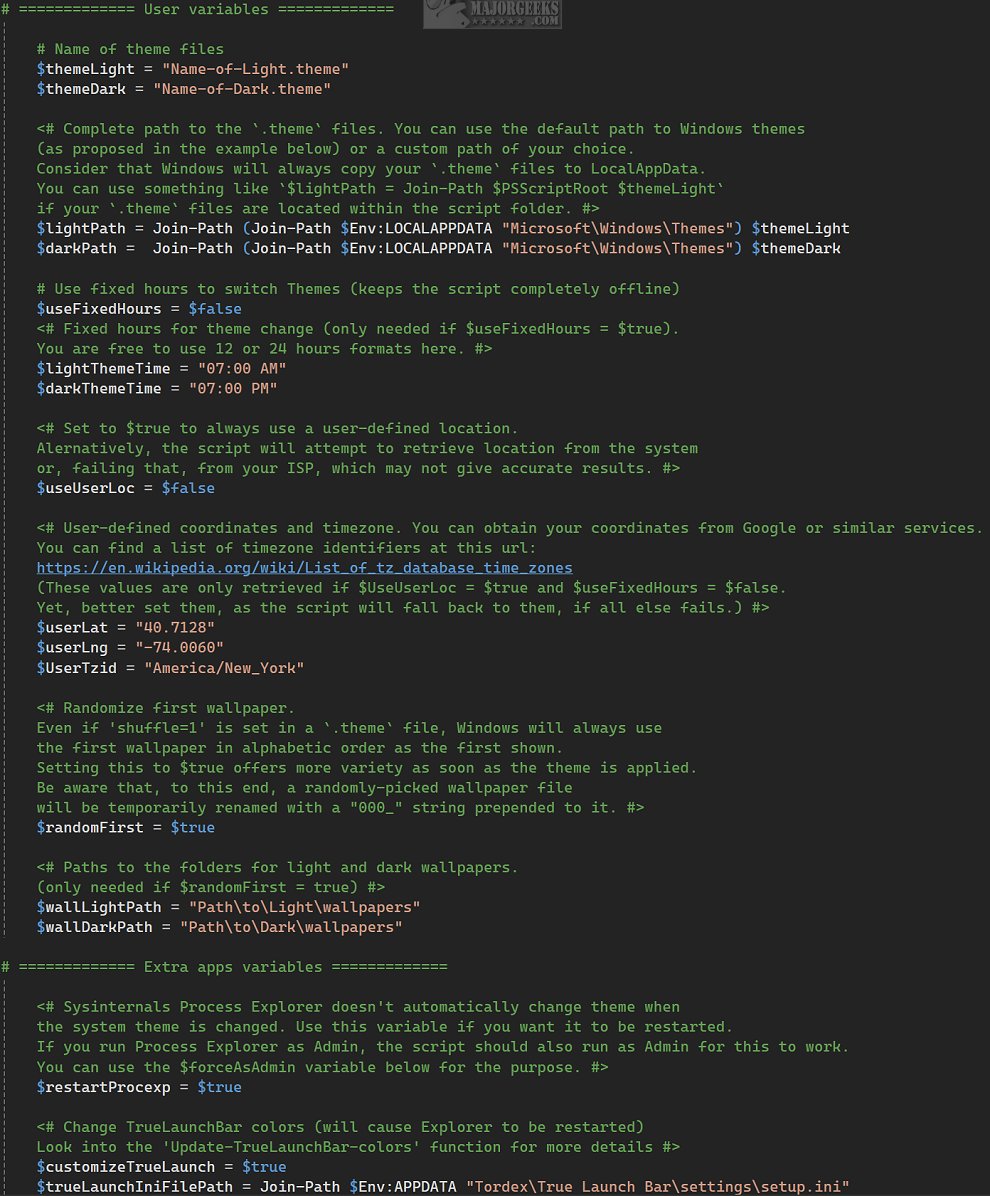
AUTO THEME is an innovative PowerShell script designed to optimize your Windows interface by automatically adjusting the system theme based on sunrise and sunset times, or according to user-defined time settings. This functionality allows for a smooth transition between light and dark themes, enhancing visibility and comfort depending on the time of day.
How AUTO THEME Works
Unlike traditional methods that rely on registry or system settings, AUTO THEME focuses on activating specific `.theme` files. This unique approach not only provides a higher level of customization but also ensures compatibility across various systems and environments. By concentrating on individual theme files, users can easily modify or switch themes without altering core system settings, granting them a personalized user experience.
Background Operation
AUTO THEME operates as a scheduled task in the background, automating theme updates without any user intervention. It autonomously schedules tasks for upcoming daylight events, regularly updating the "Sunrise theme" and "Sunset theme" tasks to keep the task list organized. Users can configure the script using the Setup.ps1 file, which allows for the specification of preferred times and additional modifications via the Windows Task Scheduler. A comprehensive guide is available on the developer's repository for assistance.
Executing the command `./AutoTheme.ps1` from the terminal or a desktop shortcut will toggle between themes. Users are advised to edit the Config.ps1 file for initial configuration, which includes all necessary instructions. Alternatively, users can run Setup.ps1 to establish the main Scheduled Task or manually create one in Task Scheduler.
Offline Functionality
While AUTO THEME can connect to the internet for location verification to determine sunrise and sunset times, it also supports offline operation based on fixed hours that users can set, making it versatile for varying connectivity situations.
User Experience and Recommendations
AUTO THEME offers significant benefits for users looking to automate their theme changes in sync with the time of day. It enhances the visual experience by aligning interface elements with changing lighting conditions, creating a more engaging digital environment. However, it is important to note that the script may require some technical knowledge to configure, which may pose a challenge for less experienced users.
Conclusion
In summary, AUTO THEME is a powerful tool for those who appreciate an adaptive interface that transforms with the rhythm of the day. It provides a new layer of aesthetic appeal to the Windows experience, although users should be prepared to navigate its configuration intricacies. Embrace this opportunity to personalize your workspace and enjoy a dynamic theme experience that evolves throughout the day.
Related Tools:
- MajorGeeks Windows Tweaks
- PowerShell and Command Prompt 101
- Enabling Night Light Mode in Windows 10/11 to Reduce Eye Strain
- Troubleshooting Night Light Issues in Windows 10/1
How AUTO THEME Works
Unlike traditional methods that rely on registry or system settings, AUTO THEME focuses on activating specific `.theme` files. This unique approach not only provides a higher level of customization but also ensures compatibility across various systems and environments. By concentrating on individual theme files, users can easily modify or switch themes without altering core system settings, granting them a personalized user experience.
Background Operation
AUTO THEME operates as a scheduled task in the background, automating theme updates without any user intervention. It autonomously schedules tasks for upcoming daylight events, regularly updating the "Sunrise theme" and "Sunset theme" tasks to keep the task list organized. Users can configure the script using the Setup.ps1 file, which allows for the specification of preferred times and additional modifications via the Windows Task Scheduler. A comprehensive guide is available on the developer's repository for assistance.
Executing the command `./AutoTheme.ps1` from the terminal or a desktop shortcut will toggle between themes. Users are advised to edit the Config.ps1 file for initial configuration, which includes all necessary instructions. Alternatively, users can run Setup.ps1 to establish the main Scheduled Task or manually create one in Task Scheduler.
Offline Functionality
While AUTO THEME can connect to the internet for location verification to determine sunrise and sunset times, it also supports offline operation based on fixed hours that users can set, making it versatile for varying connectivity situations.
User Experience and Recommendations
AUTO THEME offers significant benefits for users looking to automate their theme changes in sync with the time of day. It enhances the visual experience by aligning interface elements with changing lighting conditions, creating a more engaging digital environment. However, it is important to note that the script may require some technical knowledge to configure, which may pose a challenge for less experienced users.
Conclusion
In summary, AUTO THEME is a powerful tool for those who appreciate an adaptive interface that transforms with the rhythm of the day. It provides a new layer of aesthetic appeal to the Windows experience, although users should be prepared to navigate its configuration intricacies. Embrace this opportunity to personalize your workspace and enjoy a dynamic theme experience that evolves throughout the day.
Related Tools:
- MajorGeeks Windows Tweaks
- PowerShell and Command Prompt 101
- Enabling Night Light Mode in Windows 10/11 to Reduce Eye Strain
- Troubleshooting Night Light Issues in Windows 10/1
AUTO THEME 1.0.31 released
AUTO THEME is an advanced PowerShell script designed to enhance your Windows experience by automatically changing the system theme based on sunrise and sunset times, or according to specific hours that you configure.