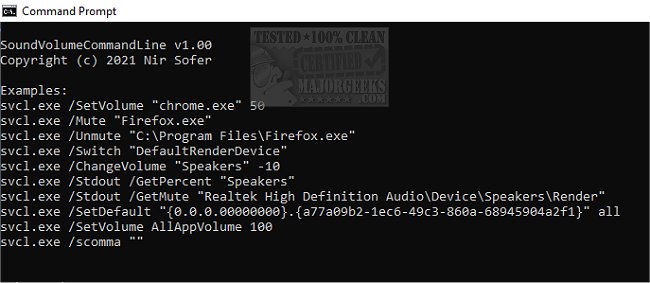
SoundVolumeCommandLine (svcl.exe) version 1.28 has been released, enhancing users' ability to manage sound volume directly from the command line interface. This tool allows for actions such as adjusting the sound volume, muting or unmuting audio, increasing or decreasing volume levels, and specifying the volume of individual audio channels. Users can also set default rendering and capturing devices, as well as retrieve the current sound volume level for specified devices.
Svcl.exe serves as the console version of SoundVolumeView, enabling users to utilize all commands from SoundVolumeView with the same syntax. A notable new feature in this release is the addition of the /Stdout command, which allows information related to executed commands to be sent to the standard output (stdout) instead of just being returned via the return code. For instance, using the command `svcl.exe /GetPercent "Realtek High Definition Audio\Device\Speakers\Render"` will yield the current volume percentage through the %errorlevel% variable. However, by appending the /Stdout option, users can see the information displayed directly in the command prompt window.
Additionally, when executing commands that set volume levels, mute audio, or change default devices, using the /Stdout command will list the affected audio items, providing clarity on which sound devices are being modified.
For users looking for practical applications, the author's site offers several command-line examples to illustrate how to effectively use svcl.exe.
This tool is particularly useful for power users and system administrators who prefer command-line interfaces for greater control over audio settings, as well as for troubleshooting sound issues on Windows systems.
In summary, SoundVolumeCommandLine 1.28 expands command-line functionality for audio management, making it easier for users to interact with sound settings efficiently and transparently
Svcl.exe serves as the console version of SoundVolumeView, enabling users to utilize all commands from SoundVolumeView with the same syntax. A notable new feature in this release is the addition of the /Stdout command, which allows information related to executed commands to be sent to the standard output (stdout) instead of just being returned via the return code. For instance, using the command `svcl.exe /GetPercent "Realtek High Definition Audio\Device\Speakers\Render"` will yield the current volume percentage through the %errorlevel% variable. However, by appending the /Stdout option, users can see the information displayed directly in the command prompt window.
Additionally, when executing commands that set volume levels, mute audio, or change default devices, using the /Stdout command will list the affected audio items, providing clarity on which sound devices are being modified.
For users looking for practical applications, the author's site offers several command-line examples to illustrate how to effectively use svcl.exe.
This tool is particularly useful for power users and system administrators who prefer command-line interfaces for greater control over audio settings, as well as for troubleshooting sound issues on Windows systems.
In summary, SoundVolumeCommandLine 1.28 expands command-line functionality for audio management, making it easier for users to interact with sound settings efficiently and transparently
SoundVolumeCommandLine 1.28 released
SoundVolumeCommandLine (svcl.exe) allows you to perform actions related to sound volume directly from the command line.