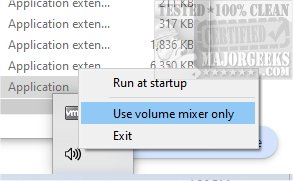
QontrolPanel version 1.11.0 has been released, providing an efficient solution for users looking to easily switch between various audio devices on their computers. Formerly known as QuickSoundSwitcher, QontrolPanel streamlines the audio management process by allowing users to toggle between headphones, speakers, and external sound systems with just one click, significantly enhancing the overall audio experience.
One of the standout features of QontrolPanel is its lack of a traditional user interface, which aligns with its goal of simplicity and efficiency. Users can quickly launch the application without a lengthy installation, as it integrates seamlessly into the System Tray. From the Systray icon, users can access three primary features:
1. Input Management: This allows users to select and manage their microphone settings, making it easy to switch between different input devices for various tasks like gaming, video calls, or recording.
2. Output Management: Users can effortlessly switch between multiple audio output devices, which is particularly beneficial for those who frequently alternate between speakers and headphones.
3. Volume Mixer: This feature provides precise control over the sound levels of individual applications, allowing users to adjust volumes independently or mute specific apps without affecting overall system audio.
QontrolPanel also displays a list of active applications capable of producing sound, complete with volume sliders and mute buttons for each, giving users tailored control over their audio experience.
The verdict is clear: QontrolPanel is a must-have tool for anyone looking to manage their audio settings with ease. Its user-friendly design and efficient functionality cater to those who need to frequently switch between different audio devices without the hassle of complex interfaces.
In addition to QontrolPanel, users might find value in exploring related topics, such as enabling Windows Sonic Surround Sound on Windows 10 and 11, or toggling key sounds on or off in these operating systems. This extension of audio control options further enhances the user experience, making it easier to customize sound settings to personal preferences
One of the standout features of QontrolPanel is its lack of a traditional user interface, which aligns with its goal of simplicity and efficiency. Users can quickly launch the application without a lengthy installation, as it integrates seamlessly into the System Tray. From the Systray icon, users can access three primary features:
1. Input Management: This allows users to select and manage their microphone settings, making it easy to switch between different input devices for various tasks like gaming, video calls, or recording.
2. Output Management: Users can effortlessly switch between multiple audio output devices, which is particularly beneficial for those who frequently alternate between speakers and headphones.
3. Volume Mixer: This feature provides precise control over the sound levels of individual applications, allowing users to adjust volumes independently or mute specific apps without affecting overall system audio.
QontrolPanel also displays a list of active applications capable of producing sound, complete with volume sliders and mute buttons for each, giving users tailored control over their audio experience.
The verdict is clear: QontrolPanel is a must-have tool for anyone looking to manage their audio settings with ease. Its user-friendly design and efficient functionality cater to those who need to frequently switch between different audio devices without the hassle of complex interfaces.
In addition to QontrolPanel, users might find value in exploring related topics, such as enabling Windows Sonic Surround Sound on Windows 10 and 11, or toggling key sounds on or off in these operating systems. This extension of audio control options further enhances the user experience, making it easier to customize sound settings to personal preferences
QontrolPanel 1.11.0 released
QontrolPanel (formerly QuickSoundSwitcher) simplifies the process of switching between various audio devices on your machine.