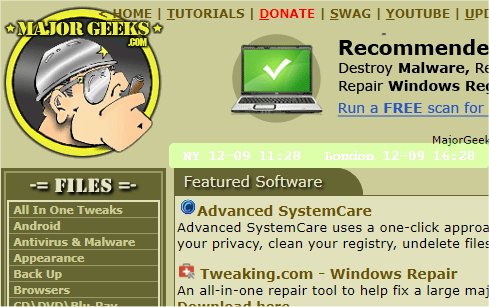
The latest version, mclocks 0.2.23, has been released, enhancing the functionality of this Open Source application designed to display multiple clocks for different time zones. This feature proves especially useful for users engaged in international travel or meetings across various time zones.
To set up the clocks, users need to edit a configuration file named config.json, which can be easily accessed and modified using Notepad. Here’s a sample configuration for the app:
This configuration allows users to customize various aspects of their clock display, such as date and time format, color, and opacity.
In addition to its primary function, mclocks can be complemented by other similar tools and tips, such as guides on how to show multiple clocks on Windows, how to fix incorrect date or time settings on the Windows clock, and methods for customizing or removing the clock feature in Windows 10 and 11 taskbars.
Looking ahead, future updates could include features like synchronization with online time sources, the ability to set alarms for different time zones, and integration with calendar applications to display relevant time zone information for upcoming events. Enhanced customization options could also be beneficial, allowing users to choose from different clock designs or themes
To set up the clocks, users need to edit a configuration file named config.json, which can be easily accessed and modified using Notepad. Here’s a sample configuration for the app:
json{
"clocks": [
{ "name": "NY", "timezone": "America/New_York" },
{ "name": "London", "timezone": "Europe/London" }
],
"formatDateTime": "MM-DD ddd HH:mm",
"localeDateTime": "en",
"opacity": 1,
"fontColor": "#fff",
"fontSize": 14,
"bgColor": "#151",
"onlyText": false,
"alwaysOnTop": false
}
This configuration allows users to customize various aspects of their clock display, such as date and time format, color, and opacity.
In addition to its primary function, mclocks can be complemented by other similar tools and tips, such as guides on how to show multiple clocks on Windows, how to fix incorrect date or time settings on the Windows clock, and methods for customizing or removing the clock feature in Windows 10 and 11 taskbars.
Looking ahead, future updates could include features like synchronization with online time sources, the ability to set alarms for different time zones, and integration with calendar applications to display relevant time zone information for upcoming events. Enhanced customization options could also be beneficial, allowing users to choose from different clock designs or themes
mclocks 0.2.23 released
mclocks is an Open Source app that allows you to display multiple time zone clocks.