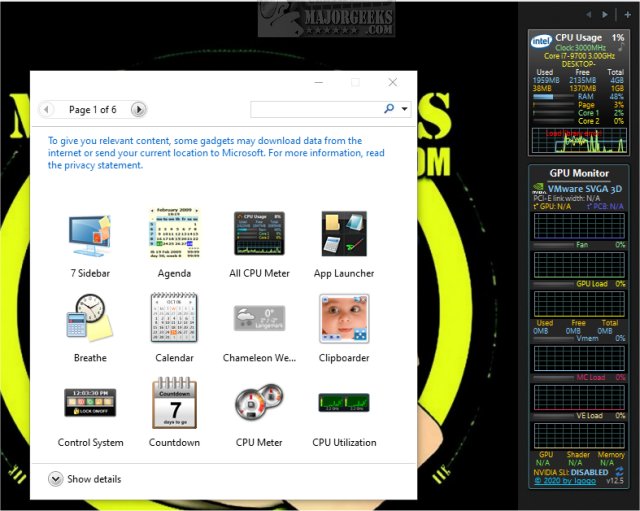
GPU Monitor 13.5 has been released as a Windows gadget that allows users to monitor their NVIDIA or Radeon graphics cards. It's crucial to note that the Windows operating system previously removed gadgets due to security concerns. To use GPU Monitor, users will need to install a third-party tool such as 8GadgetPack or Desktop Gadgets Revived, both of which provide a collection of safe, tested gadgets. While the risk of using additional third-party gadgets has diminished, caution is still advised when adding any beyond those included in these packs.
Once installed, GPU Monitor offers a comprehensive overview of various graphics card metrics, including GPU temperature, fan speed, GPU load, virtual memory usage, memory controller load, video engine load, and SLI status. Although Microsoft removed native gadget support, users who have it enabled can install GPU Monitor by double-clicking the GPUMonitor.gadget file. For most users, a third-party tool will likely be necessary to enable gadget functionality.
GPU Monitor is designed to be lightweight, utilizing only about 5% of CPU resources and 50MB of memory, ensuring that it does not significantly impact overall system performance. This tool is particularly useful for gamers and professionals who require real-time monitoring of their graphics card's performance.
In addition to GPU Monitor, users may find related topics of interest, such as how to download the latest drivers for Windows, an explanation of Windows DCH drivers, an overview of Windows Hardware Quality Labs (WHQL), and methods to show or hide the NVIDIA Control Panel and GPU activity icons in the system tray.
To extend on this, as graphics hardware continues to evolve, tools like GPU Monitor can help users optimize their systems for gaming, rendering, and other graphics-intensive tasks. Future updates may include enhanced features, such as customizable alerts for temperature thresholds or performance benchmarks, catering to the needs of power users and enthusiasts who demand peak performance from their hardware
Once installed, GPU Monitor offers a comprehensive overview of various graphics card metrics, including GPU temperature, fan speed, GPU load, virtual memory usage, memory controller load, video engine load, and SLI status. Although Microsoft removed native gadget support, users who have it enabled can install GPU Monitor by double-clicking the GPUMonitor.gadget file. For most users, a third-party tool will likely be necessary to enable gadget functionality.
GPU Monitor is designed to be lightweight, utilizing only about 5% of CPU resources and 50MB of memory, ensuring that it does not significantly impact overall system performance. This tool is particularly useful for gamers and professionals who require real-time monitoring of their graphics card's performance.
In addition to GPU Monitor, users may find related topics of interest, such as how to download the latest drivers for Windows, an explanation of Windows DCH drivers, an overview of Windows Hardware Quality Labs (WHQL), and methods to show or hide the NVIDIA Control Panel and GPU activity icons in the system tray.
To extend on this, as graphics hardware continues to evolve, tools like GPU Monitor can help users optimize their systems for gaming, rendering, and other graphics-intensive tasks. Future updates may include enhanced features, such as customizable alerts for temperature thresholds or performance benchmarks, catering to the needs of power users and enthusiasts who demand peak performance from their hardware
GPU Monitor 13.5 released
GPU Monitor is a Windows gadget that monitors your NVIDIA or Radeon graphics cards.