FileProtection 4.75 is a user-friendly application designed to safeguard your files against accidental deletion and malicious software threats. This tool provides a simple way to ensure that your important data remains safe and secure, giving you peace of mind.
Key Features:
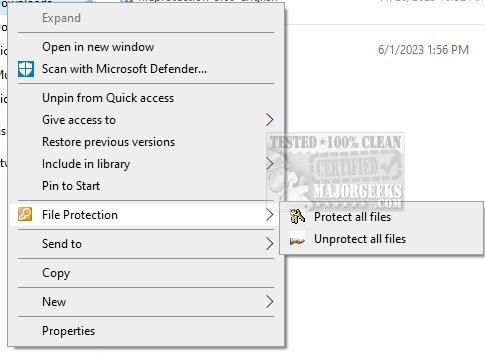
- Easy File Protection: Users can easily protect files or entire folders by right-clicking on the item and selecting the "File Protection" option. Once a file is secured, a dot will appear in the bottom left corner of its icon, indicating its protected status.
- Advice for Users: It's recommended to protect files that should not be edited, such as photos and official documents, to prevent unauthorized access.
- Removal Options: To unprotect a file, users can either confirm the removal when prompted by User Account Control (UAC) or, for those without administrative rights, enter a password set through the File Protection settings.
- Reliability: The effectiveness of FileProtection is assured as long as UAC is active or if a user is operating within a non-administrative account.
Additional Context: The software is part of a broader suite of tools designed to enhance file security and management. Related resources include guides on taking full ownership of files, securely deleting files using PowerShell and Cipher, and modifying context menus in Windows 10 and 11 to further protect or manage file deletion.
Future Enhancements: Looking ahead, FileProtection could benefit from features such as cloud-based backup options, integration with antivirus software for enhanced security measures, and user-friendly tutorials to help new users maximize the software's capabilities. Additionally, introducing multi-language support could broaden its user base.
In summary, FileProtection 4.75 offers essential file safety features for users looking to secure their data with minimal hassle, while ongoing improvements could further enhance its functionality and accessibility
Key Features:
- Easy File Protection: Users can easily protect files or entire folders by right-clicking on the item and selecting the "File Protection" option. Once a file is secured, a dot will appear in the bottom left corner of its icon, indicating its protected status.
- Advice for Users: It's recommended to protect files that should not be edited, such as photos and official documents, to prevent unauthorized access.
- Removal Options: To unprotect a file, users can either confirm the removal when prompted by User Account Control (UAC) or, for those without administrative rights, enter a password set through the File Protection settings.
- Reliability: The effectiveness of FileProtection is assured as long as UAC is active or if a user is operating within a non-administrative account.
Additional Context: The software is part of a broader suite of tools designed to enhance file security and management. Related resources include guides on taking full ownership of files, securely deleting files using PowerShell and Cipher, and modifying context menus in Windows 10 and 11 to further protect or manage file deletion.
Future Enhancements: Looking ahead, FileProtection could benefit from features such as cloud-based backup options, integration with antivirus software for enhanced security measures, and user-friendly tutorials to help new users maximize the software's capabilities. Additionally, introducing multi-language support could broaden its user base.
In summary, FileProtection 4.75 offers essential file safety features for users looking to secure their data with minimal hassle, while ongoing improvements could further enhance its functionality and accessibility
FileProtection 4.75 released
FileProtection is a simple and effective tool that allows you to protect your files from accidental deletion and malicious software easily.