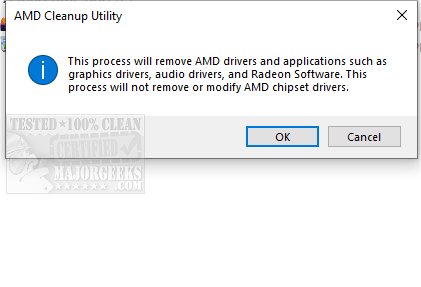
The AMD Cleanup Utility version 25.30 has been released to assist users in completely removing AMD driver files, registry entries, and driver store items from their systems when the standard uninstallation process fails. This tool is particularly useful for removing AMD display and audio drivers, as well as associated software components. However, it does not affect AMD chipset drivers, including those for GPIO, SATA, and USB.
The utility is user-friendly and guides users through each step of the cleanup process, allowing them to review an installation report before finalizing the removal. A system reboot is necessary for the changes to take effect, and it is advisable to create a system restore point prior to using the utility to safeguard against potential issues.
The AMD Cleanup Utility is specifically designed to prepare a system for a fresh driver installation after unsuccessful uninstallation attempts through the Windows Control Panel. Users are encouraged to utilize this tool only when standard methods fail.
To further enhance your understanding of managing applications, you may find it helpful to explore related topics such as "How To Uninstall Programs," "How to Uninstall Programs Not Listed in Control Panel," "How to Manually Remove Program Entries from the Apps & Features List," and "How to Uninstall Suggested Apps and Ads in Windows 10 Settings." These resources can provide additional insights and techniques for managing programs on your computer effectively
The utility is user-friendly and guides users through each step of the cleanup process, allowing them to review an installation report before finalizing the removal. A system reboot is necessary for the changes to take effect, and it is advisable to create a system restore point prior to using the utility to safeguard against potential issues.
The AMD Cleanup Utility is specifically designed to prepare a system for a fresh driver installation after unsuccessful uninstallation attempts through the Windows Control Panel. Users are encouraged to utilize this tool only when standard methods fail.
To further enhance your understanding of managing applications, you may find it helpful to explore related topics such as "How To Uninstall Programs," "How to Uninstall Programs Not Listed in Control Panel," "How to Manually Remove Program Entries from the Apps & Features List," and "How to Uninstall Suggested Apps and Ads in Windows 10 Settings." These resources can provide additional insights and techniques for managing programs on your computer effectively
AMD Cleanup Utility 25.30 released
AMD Cleanup Utility removes previously installed AMD driver files, registries, and driver store items from your machine when standard uninstallation fails.